Blog
How to send outreach emails with Mondovo
A step-by-step guide to cold outreach in Mondovo: add sending mailboxes on a separate domain, upload your list, write the email with AI, review every email, then let Mondovo pace the sending, follow-ups and replies.
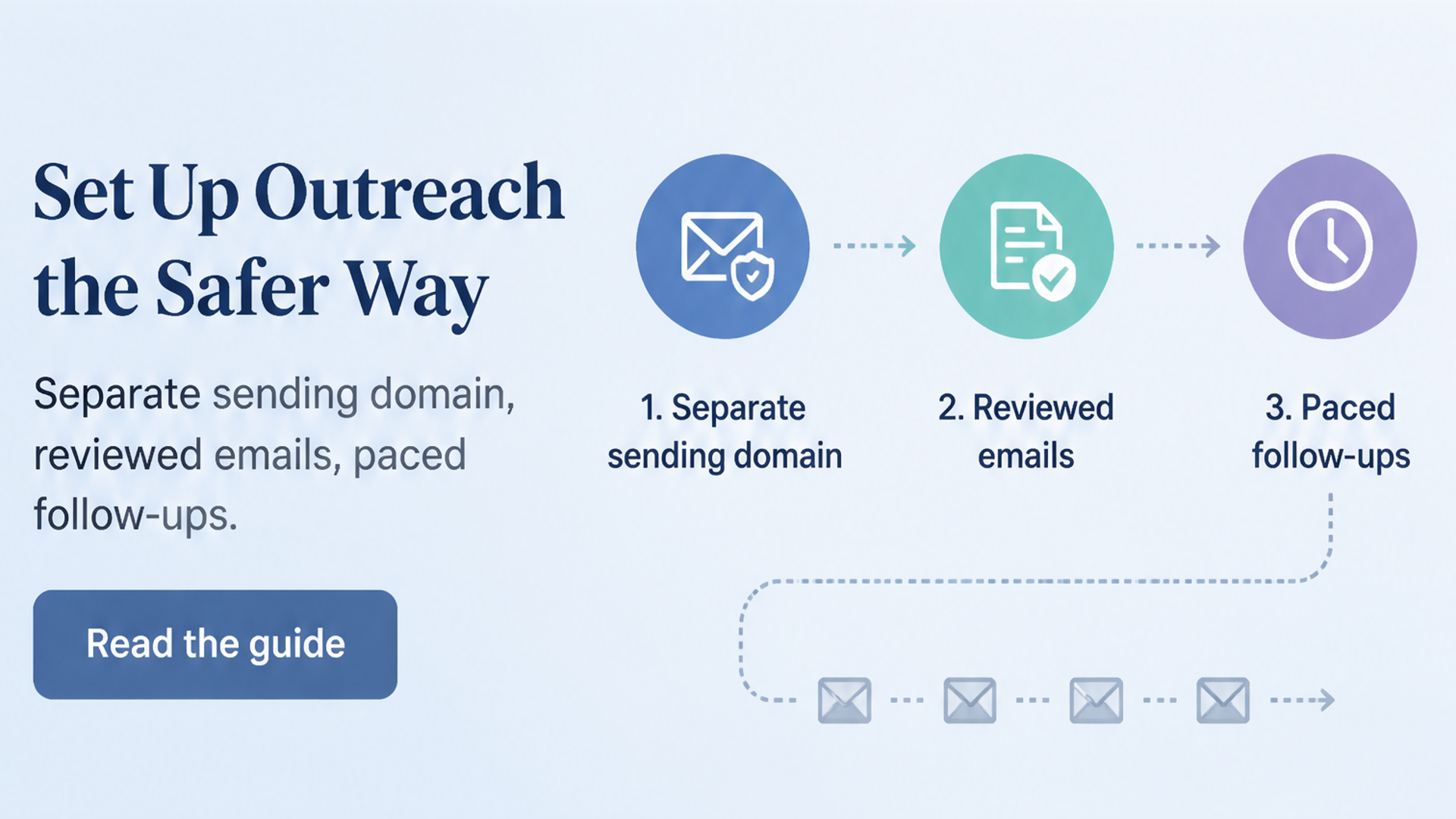
Add a mailbox, upload your list, write one good email, then approve and send. Mondovo paces the sending, sends the follow-ups and collects the replies.
You can do all of it on the Growth screens below, or by chatting: in Mondovo's own assistant, in ChatGPT or Claude, or through our API. See Other ways to run it at the end.
Everything here is under Growth in the top menu, in four tabs: Projects, Inbox, Mailboxes and More tools (which holds Campaigns).
Before you start: use a separate sending domain
Never send cold email from your main domain. Some people will ignore your emails or mark them as spam, and that counts against the domain they came from. If it's your main domain, your invoices and client replies can start landing in spam too.
Send from a lookalike domain instead. If your business is brightpixel.com, send from something like trybrightpixel.com. People still recognise your brand, and your main domain stays safe.
1. Add a mailbox
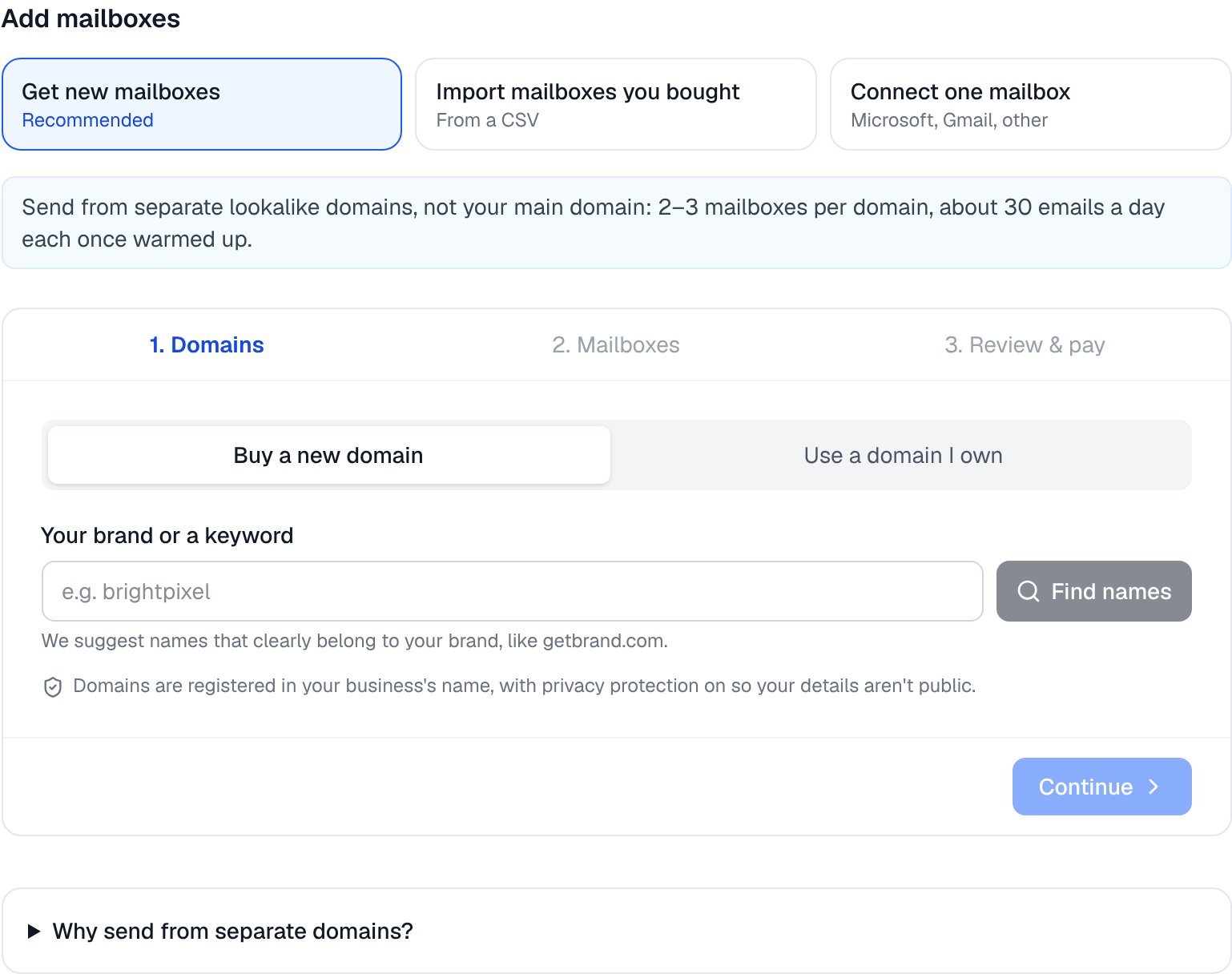
Go to Growth → Mailboxes. Your mailboxes are listed at the top. Under Add mailboxes there are three ways to add more.
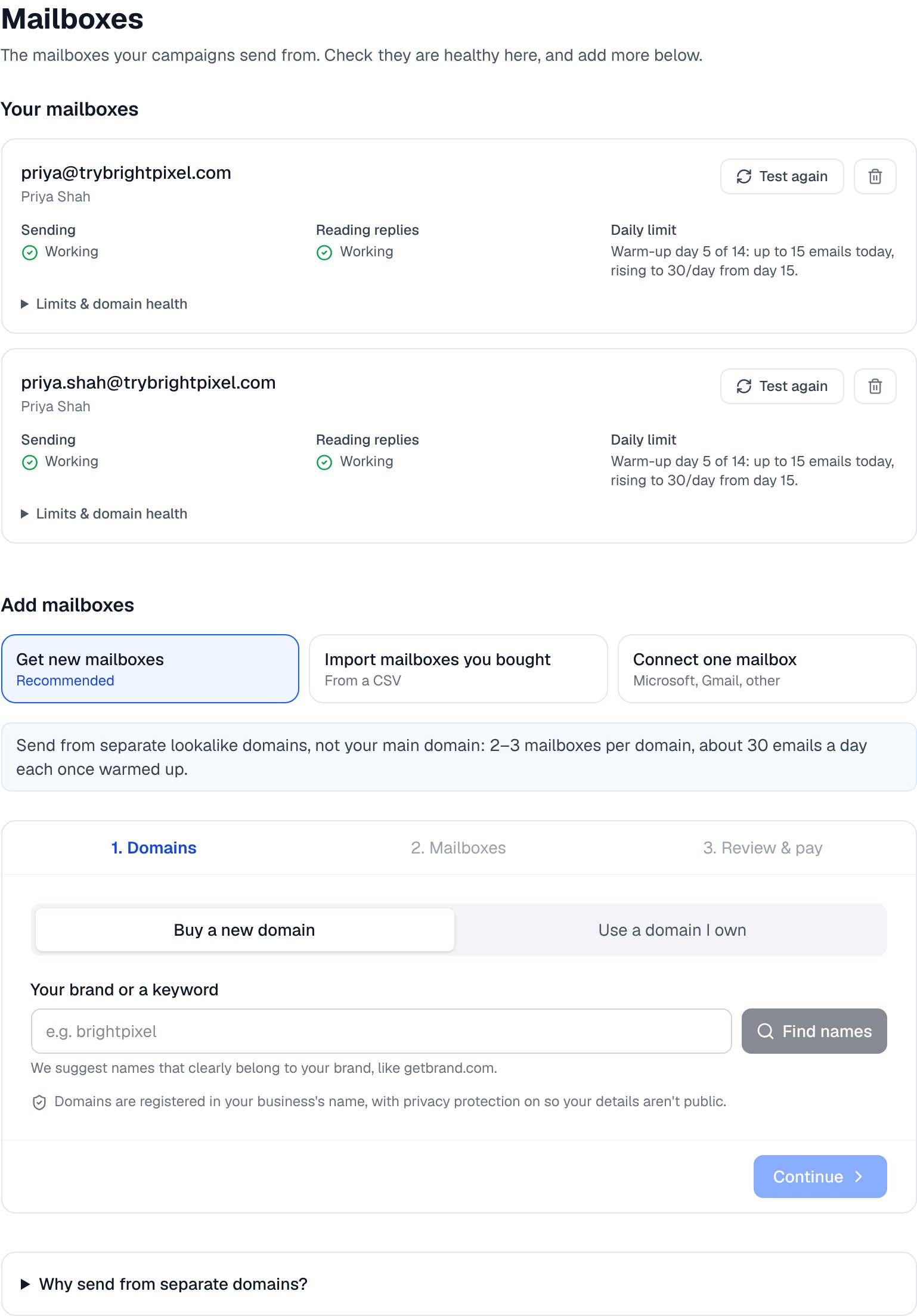
Get new mailboxes (recommended)
We buy a separate sending domain for you, or connect one you already own, create Google mailboxes on it and warm them up. A mailbox is $7 a month, and a new domain is $20 a year. Plan on 2–3 mailboxes per domain.
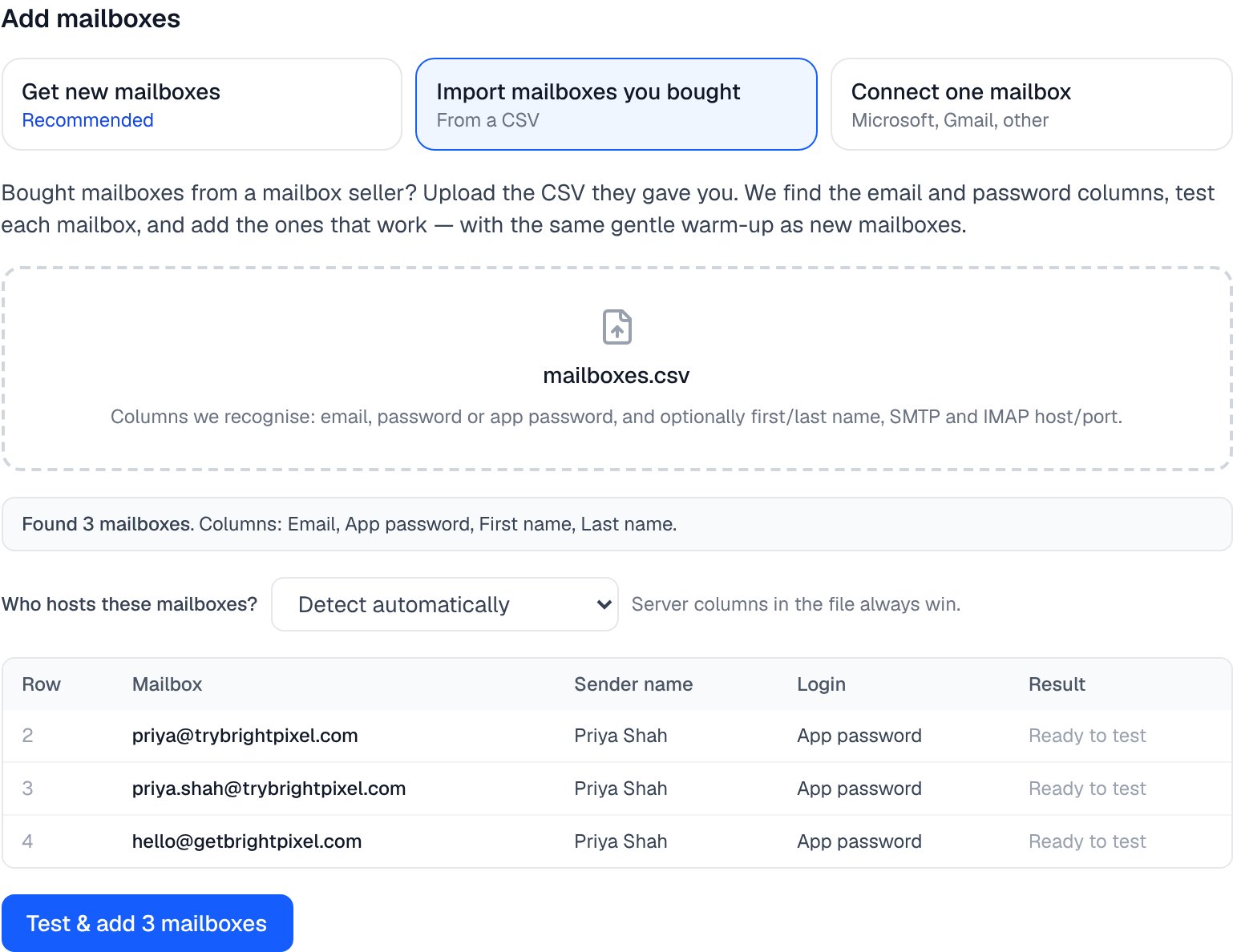
Import mailboxes you bought
Already bought mailboxes from a mailbox seller? Upload their CSV. Each row needs an email and a password or app password; first and last name are optional. We test each login and add the ones that work.
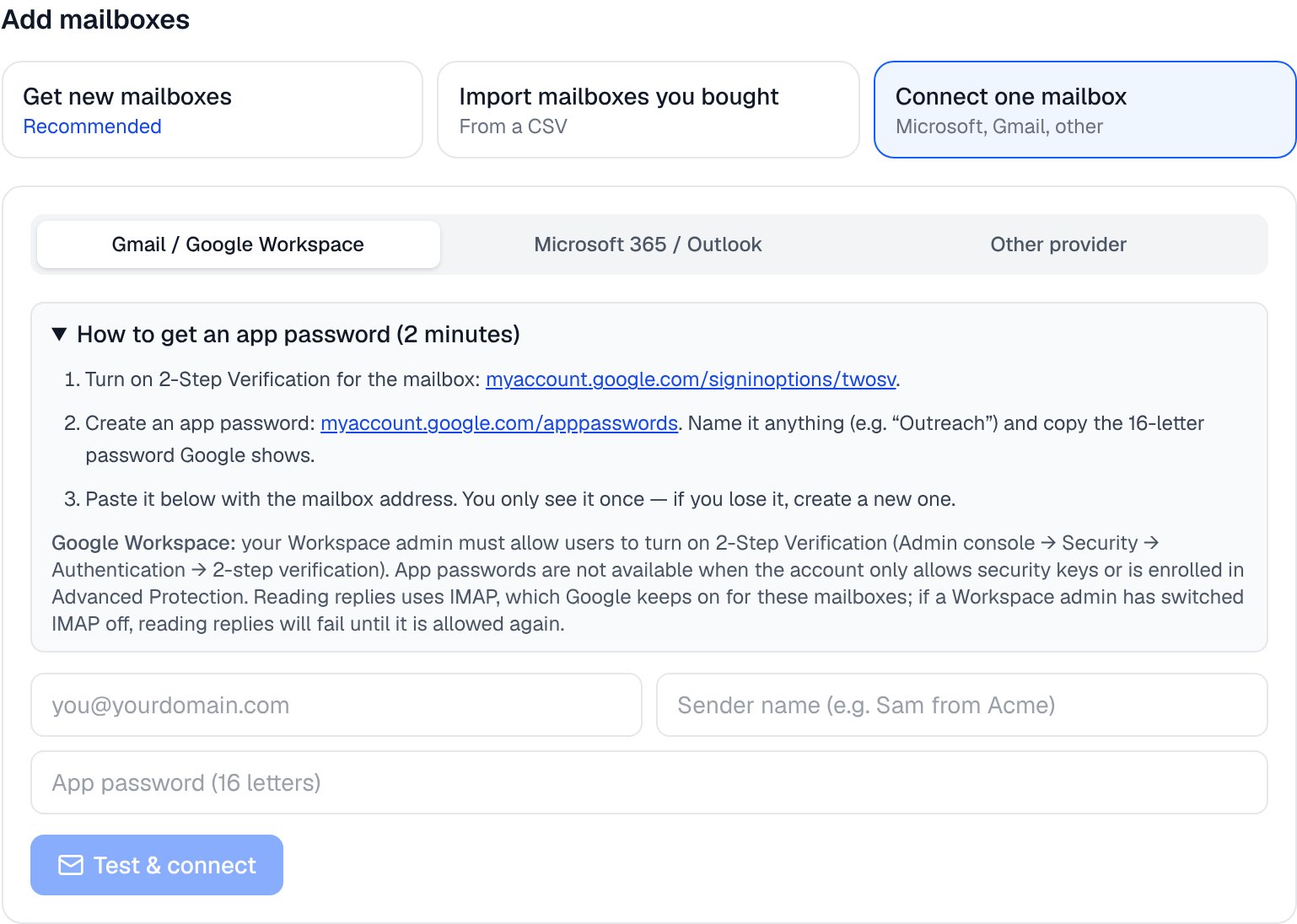
Connect one mailbox
Add a single mailbox: Gmail with an app password, Microsoft with a sign-in, or any other provider by its sending details.
Give every mailbox a sender name
Each mailbox needs the name people see in their inbox, such as "Sam Patel". Without one, your email shows up as a bare address, which looks like spam. You enter it when you add a mailbox, and can change it later in the mailbox's settings.
2. Upload your list
Go to Growth → Projects and click Or upload a list.
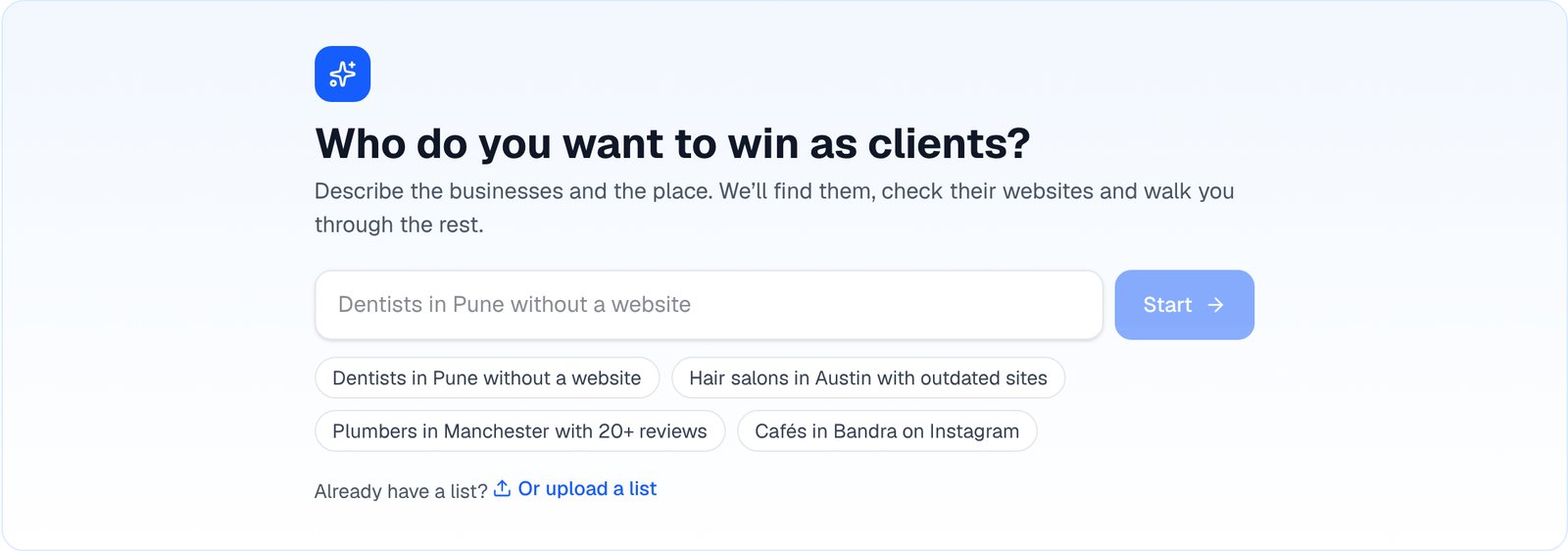
Choose a CSV with one business or contact per row, or paste rows straight from a spreadsheet. Your columns can be called anything ("Founder name", "Agency", "Email ID"…): we match each one from its name and what's in it, and show an example value beside it so you can check at a glance. Extra columns, like a LinkedIn link or your notes, are kept with the contact. If no column is matched to email, you'll see a warning before you upload.
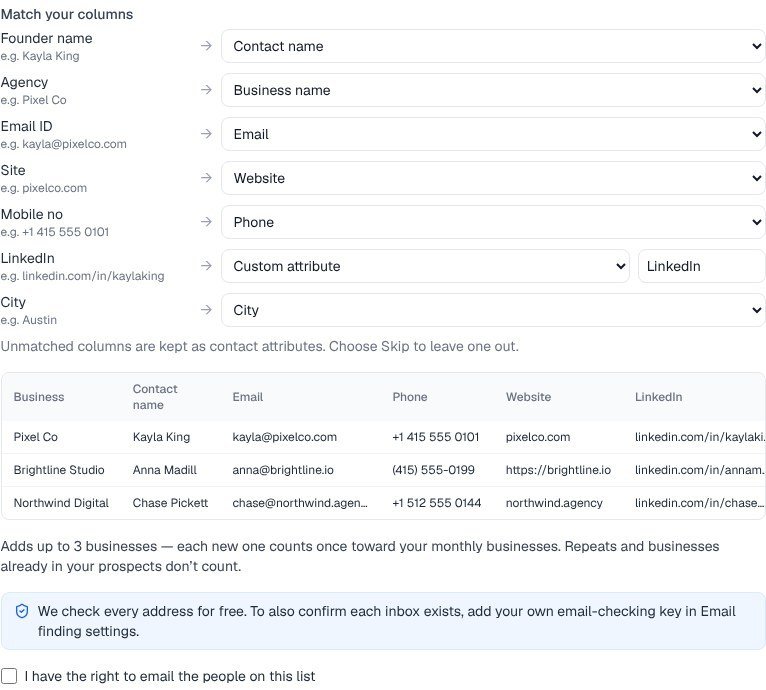
Tick the box to confirm you have the right to email these people, and click Upload and check. We check every address and set aside any that can't receive email.
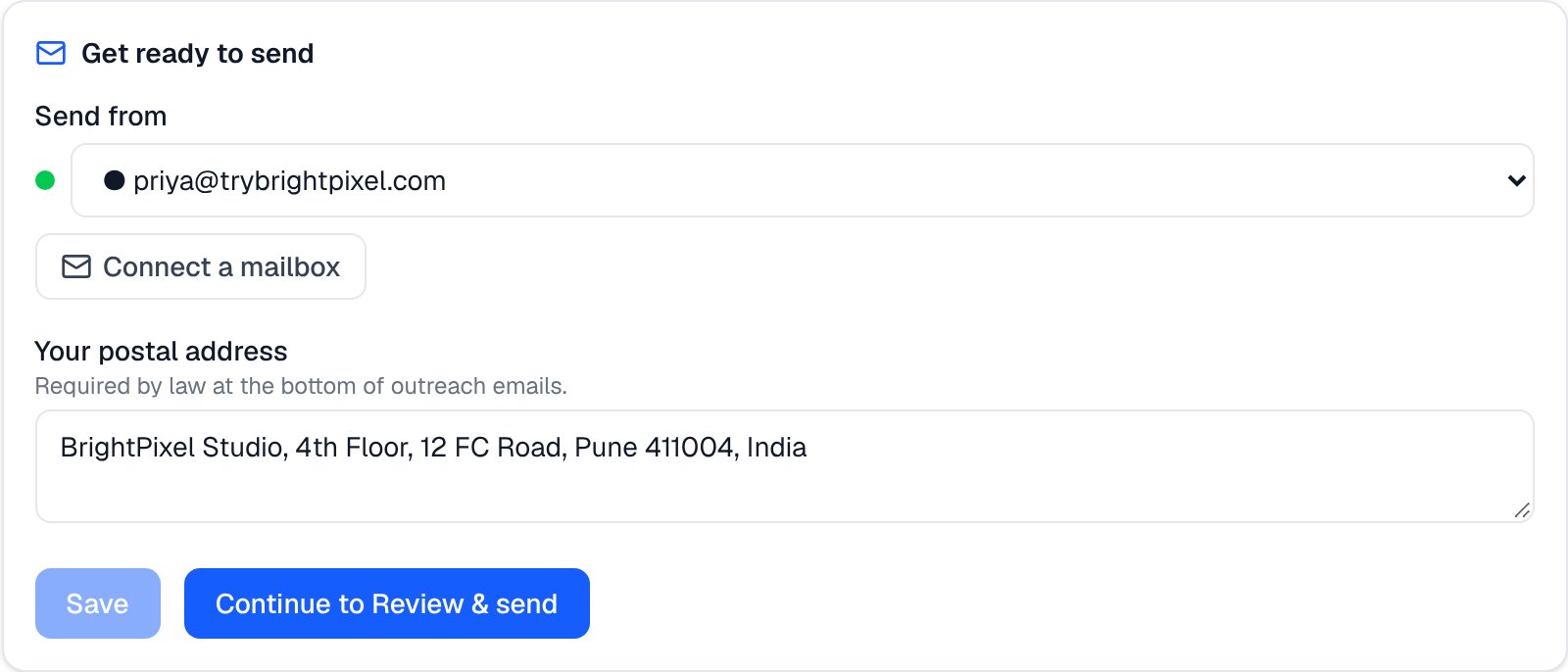
Next, the Get ready to send card asks for the mailbox these emails come from (Send from) and Your postal address, which anti-spam law requires at the bottom of every outreach email. Then click Continue to Review & send.
3. Write the email
Write it yourself, or let our AI help. Open the campaign from the link on the Review & send card (or Growth → More tools → Campaigns). Under Email writing help there are three tools.
Write with AI
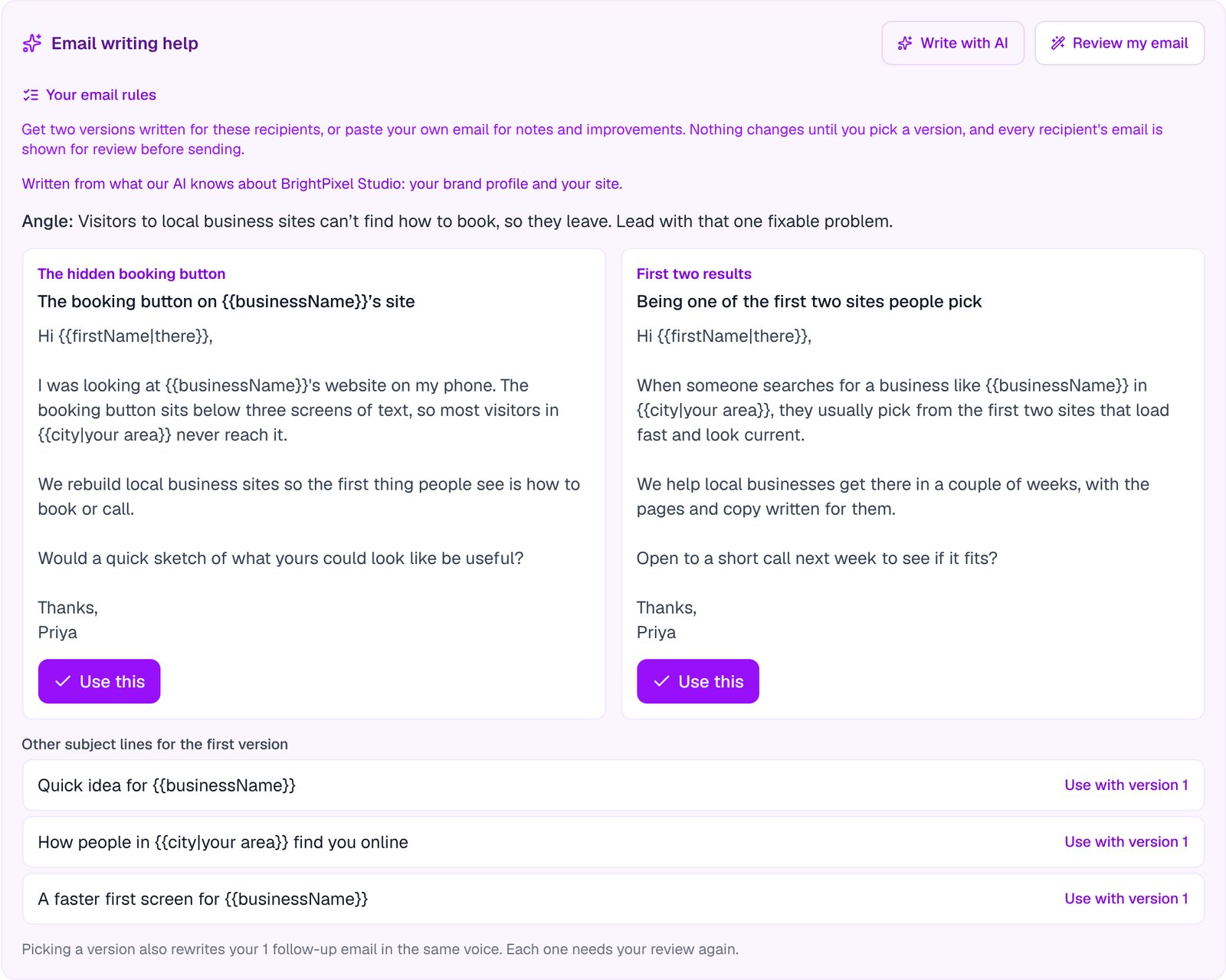
You get an angle, two versions of the email and three extra subject lines, written from what our AI knows about your business: your brand profile and your website. Pick a version with Use this.
Review my email
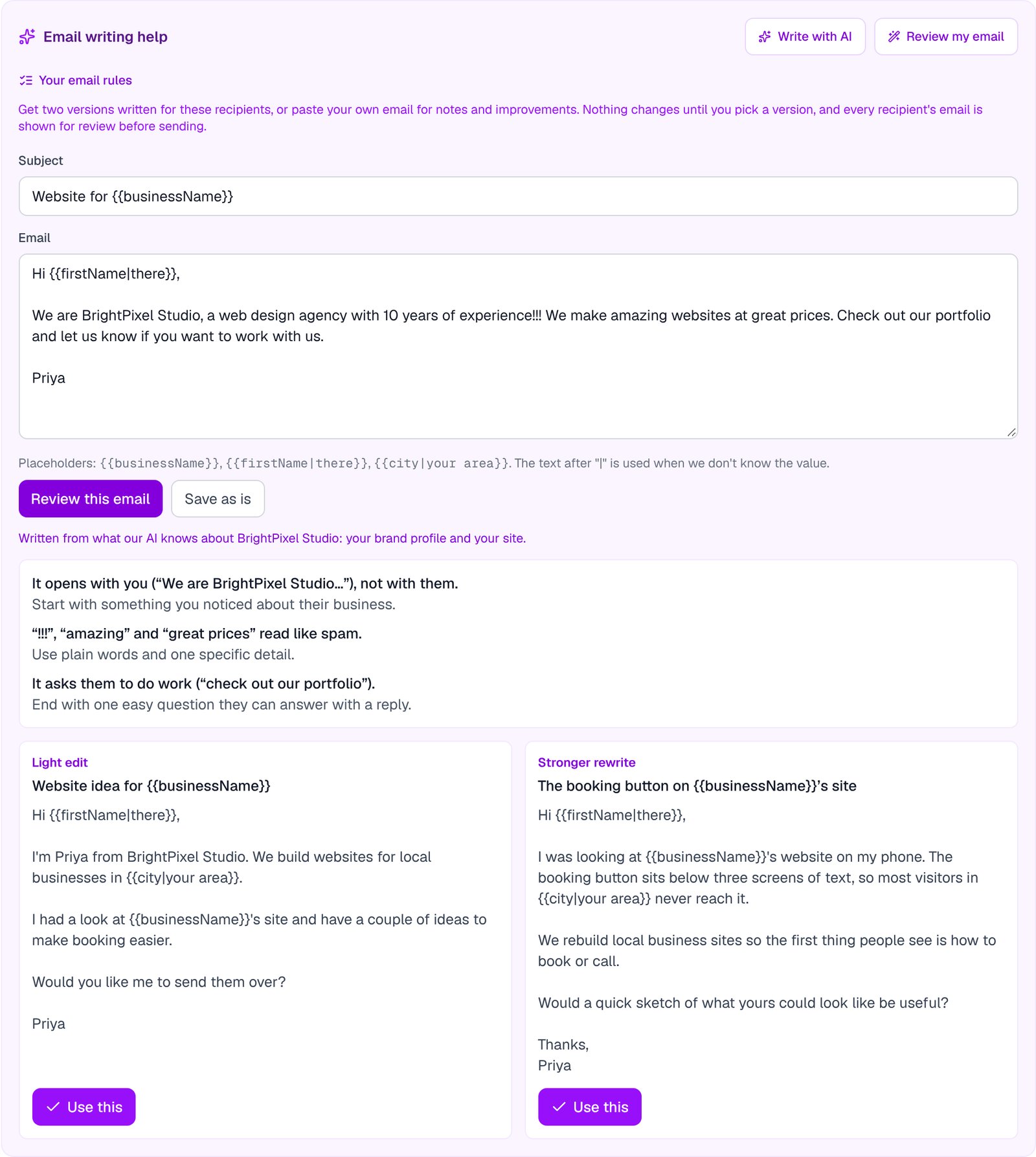
For an email you wrote yourself. Paste it in and click Review this email: you get short notes on what to fix, a light edit and a stronger rewrite.
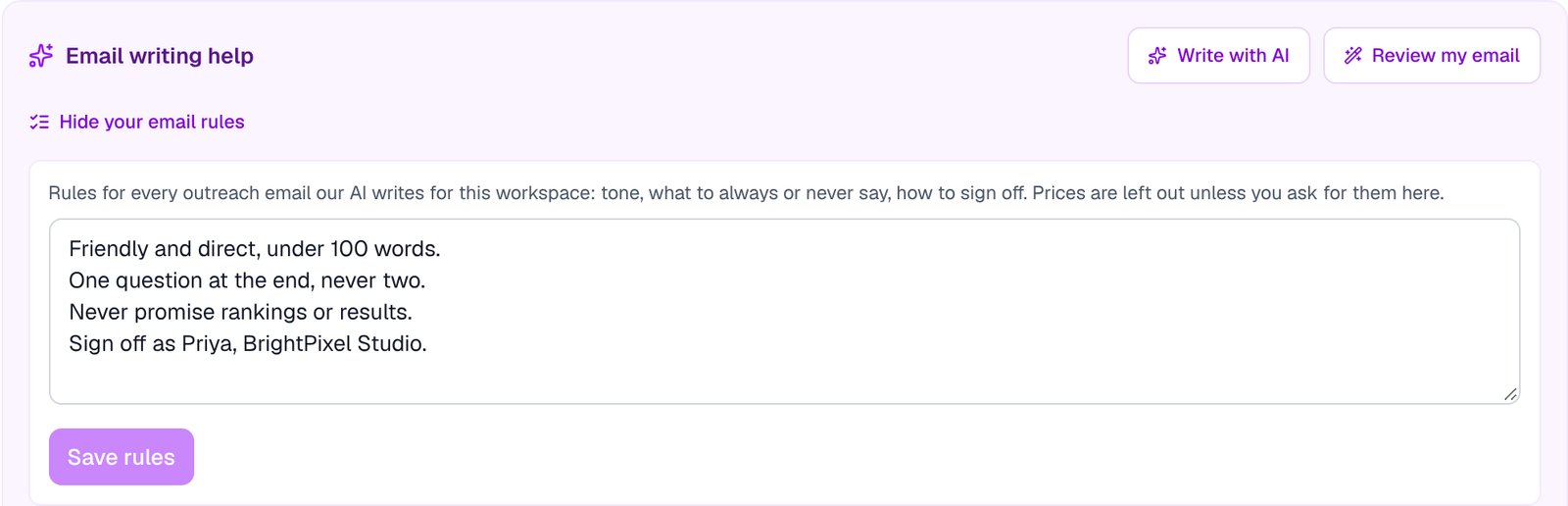
Your email rules
One set of rules for every email our AI writes for you: tone, how you sign off, what never to say. Prices are left out unless your rules ask for them.
Placeholders
Placeholders fill in each person's details when the email is sent:
| Placeholder | Becomes |
|---|---|
{{businessName}} | The business name |
{{firstName|there}} | Their first name. The text after the bar is used when we don't know it, so the greeting reads "Hi Rahul" or "Hi there". |
{{city|your area}} | Their city, or "your area" |
{{senderFirstName}} | The first name of whoever's mailbox sent the email. Use it to sign off when you send from several mailboxes. |
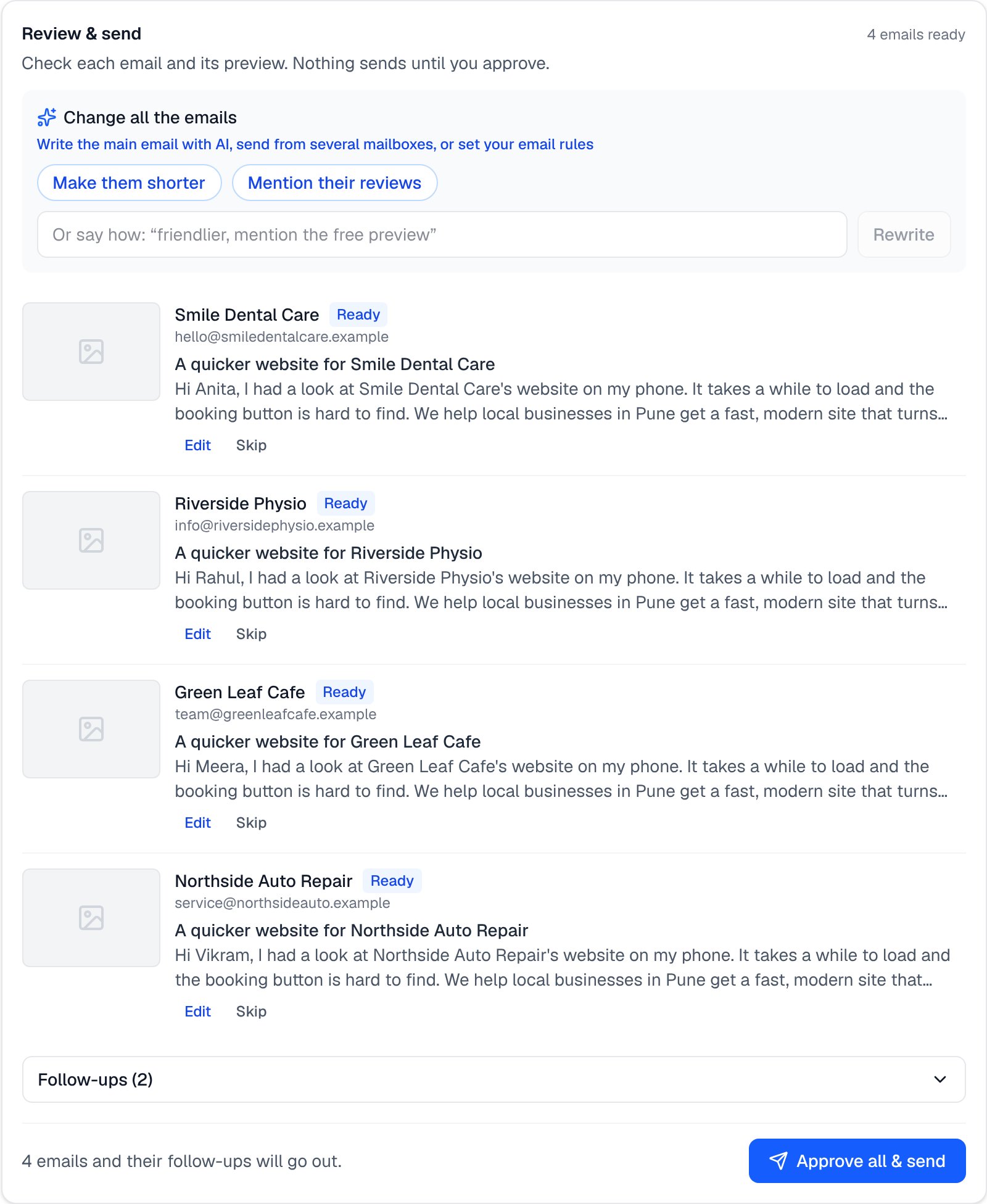
4. Review and send
The Review & send card shows every recipient's email exactly as it will be sent. Open any one to Edit it, or Skip someone. To change every email at once, use Change all the emails: tap a quick option like Make them shorter, or type what you want and click Rewrite. Check the follow-ups too, then click Approve all & send. Nothing is sent until you do.
A quick check before anything goes out
When you click send, you first see a short check. Your subject line gets a score out of 10, a note on what's weak, and two better options. It also warns you if any sending mailbox has no sender name. It's advice, not a gate: you can still send straight away.
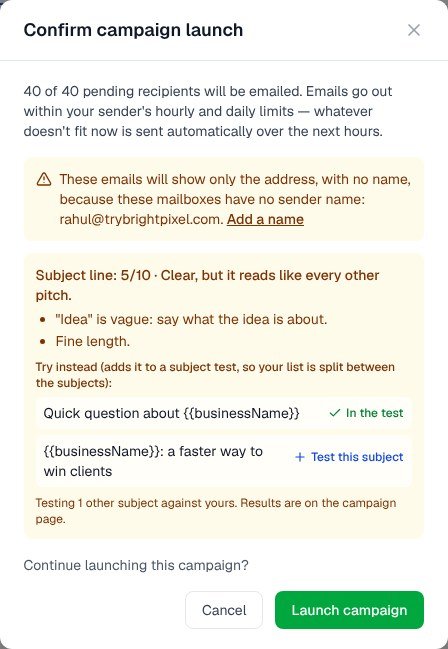
Test your subject lines
Not sure which subject works best? Add up to two others: tap Test this subject on a suggestion, or type your own under Subject line test on the campaign page. First emails are split evenly between your subject and the others. Once each has gone to 50 people and replies have had a few days to come in, the one with the clearly better reply rate is used for everyone else. The campaign page shows sends, replies and reply rate for each subject. Subjects are fixed once the first email of the test goes out, but you can stop the test at any time.
Sending from several mailboxes
With more than one mailbox, open the campaign and tick them under Send from. Each person gets their first email from the mailbox with the most room left that day, and their follow-ups and replies stay on that mailbox, so it's one conversation with one person. Sign off with {{senderFirstName}}, or add a Signature to each mailbox in its settings, so every email is signed by the right person.
5. How sending pace works
Load your whole list once. Every 15 minutes we send as many emails as today's limits allow, and carry on over the next days until everyone has been emailed. New mailboxes start slowly so they stay out of spam:
| Period | Emails a day, per mailbox |
|---|---|
| Week 1 | Up to 15 |
| Week 2 | Up to 20 |
| After that | The mailbox's daily limit: 30 by default, changeable in its settings |
Mailboxes bought through us also warm up automatically for about the first 30 days. Follow-ups go out by themselves and stop for anyone who replies, bounces or unsubscribes. To send more, add mailboxes rather than raising the limits.
6. Handle replies
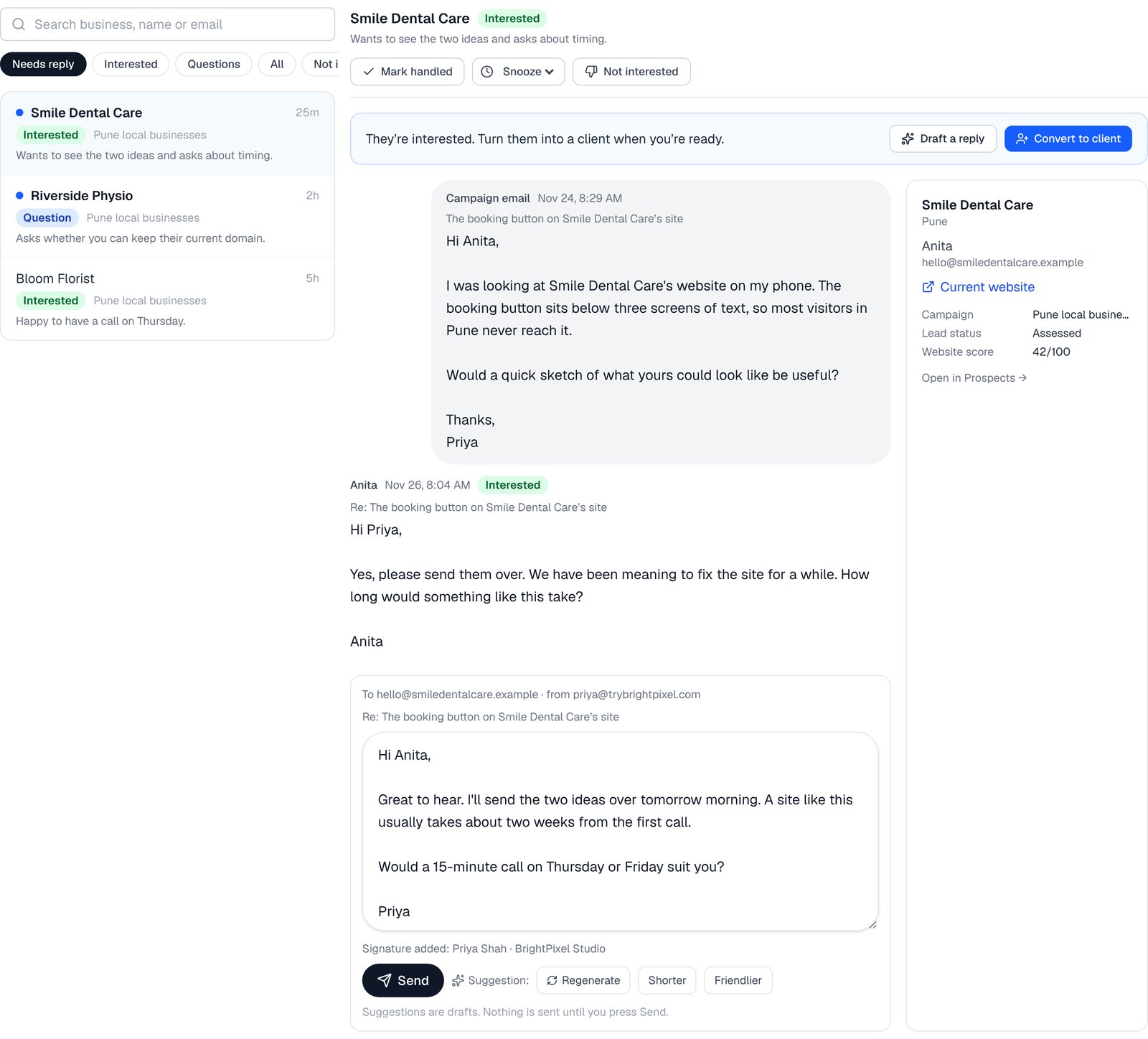
Replies land in Growth → Inbox; we check for new ones every 10 minutes. Each reply gets a label, such as Interested or Question, and you get a notification when a good one comes in. Open a conversation to read it and reply from the Inbox. A suggested reply, written from what our AI knows about your business, is ready to edit; nothing goes out until you click Send.
Other ways to run it
Everything above also works by chatting, so you can run outreach from wherever you work. Nothing is ever sent until you say yes.
- Mondovo's assistant (Ask AI). Attach your CSV and say "import this for outreach and show me how you matched the columns". Check the matches, confirm you may email these people, and approve the import. Then carry on in plain words: "check their emails", "write the emails", "make them shorter", "show me the emails", "show replies". It works the same in Mondovo on WhatsApp and Slack.
- ChatGPT or Claude. Add the Mondovo connector, then attach your list in the chat and ask for the same things. When you ask it to send, it asks you to confirm first.
- The API. Every Mondovo tool is also an API call:
GET /api/v1/toolslists them, andPOST /api/v1/tools/{name}runs one. The outreach ones arepreview_outreach_list,import_outreach_list,outreach_project_message,get_outreach_emails,list_outreach_repliesandrun_outreach_action. Use an API key from your workspace settings.
Excel files need saving as CSV first (File → Save as → CSV).
Tips
- Reply within 2 hours. Interest fades fast.
- Keep it under about 100 words. Ask one question; the first email's job is a reply.
- Don't raise limits early. The slow start protects your mailboxes.
- Never use your main domain. Keep cold email on a separate sending domain.
Screenshots use sample data.