Blog
Set up WhatsApp for your business with an AI assistant: a step-by-step example
Connect your number, let an AI answer from your website, make your profile and QR codes bring in chats, show your products, send reminders, and move across from Wati. A real example with screenshots.
Most of your customers already have WhatsApp open. If they can message you there and get a useful answer straight away, at 11pm or during the lunch rush, they book, order and come back. That’s what WhatsApp in Mondovo is for: your own business number, an AI assistant that answers from your website, and you able to jump in whenever you like.
This guide sets it all up for a real example, start to finish: connecting the number, the AI assistant, the profile customers see, the product catalog, “Chat with us” links and QR codes, reminders, and moving across from Wati or another tool. Every screenshot is from Mondovo itself.
The example: Bella Napoli
Bella Napoli is a sample Neapolitan pizza restaurant we use for demos. It already has a Mondovo website with its menu, opening hours and booking page. Everything below works the same for a salon, a clinic, a shop or a coaching business. The screenshots were captured on 13 November 2026 on Bella Napoli’s test WhatsApp number.
Before you start
- A Mondovo site for your business (building and previewing one is free).
- A phone number that can receive an SMS or a call.
- A Facebook login. Meta, which runs WhatsApp, uses it to create your business’s WhatsApp account.
Open your site, then Settings → Integrations → WhatsApp.
Step 1: Connect your number
First, tell Mondovo what the number is doing today. This matters, because WhatsApp treats each kind differently:
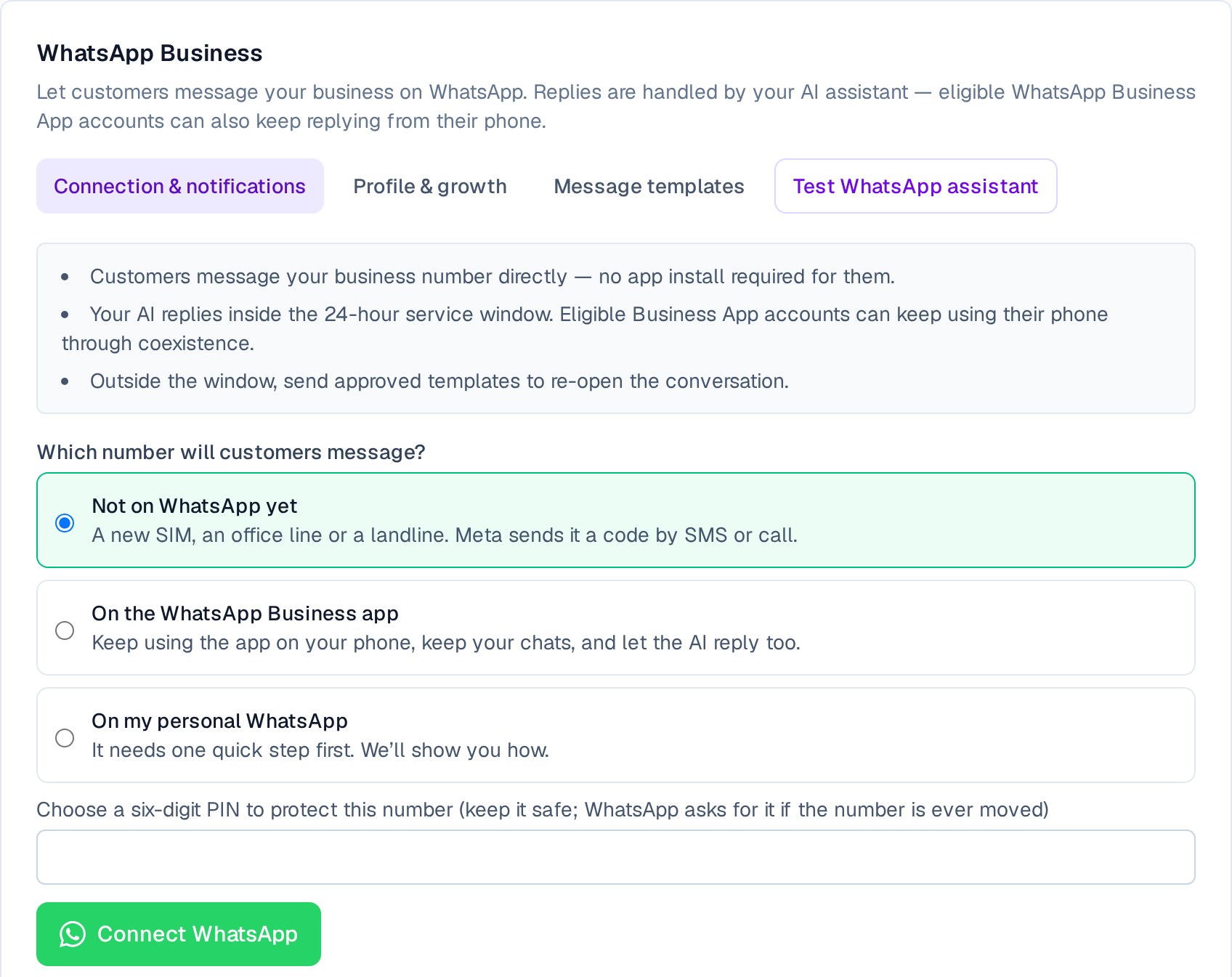
- Not on WhatsApp yet (a new SIM, an office line, even a landline): connects directly. Choose a six-digit PIN to protect the number.
- On the WhatsApp Business app: you keep using the app on your phone and keep all your chats. The AI replies alongside you.
- On your personal WhatsApp: this can’t connect directly, and Mondovo tells you why before you get stuck:
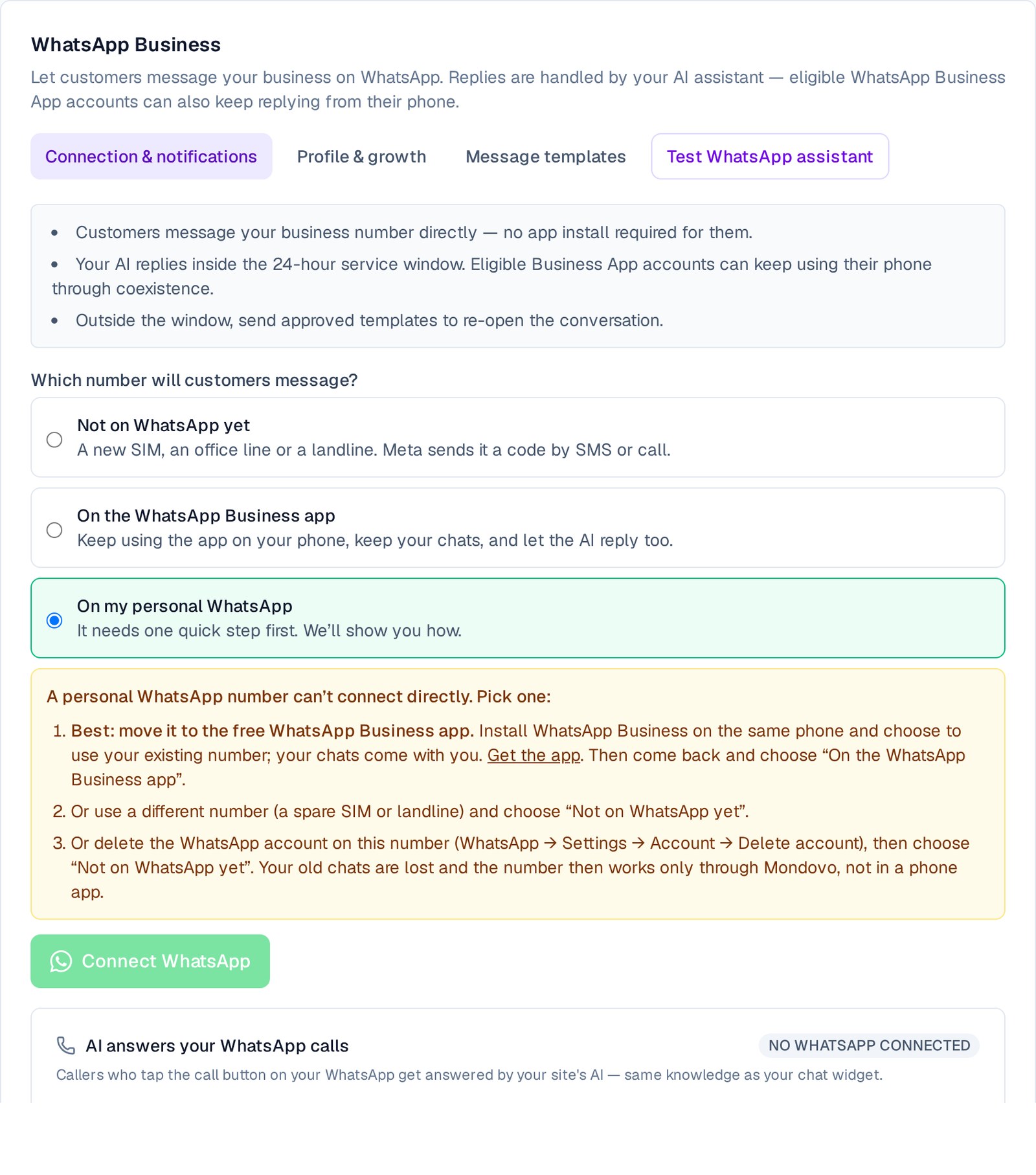
The easiest fix is to install the free WhatsApp Business app on the same phone and choose to use your existing number. Your chats move across with it. Then come back and pick “On the WhatsApp Business app”.
Click Connect WhatsApp. Meta’s window opens on top of Mondovo: log in with Facebook, create or pick your business, enter the number and the code Meta sends, and set the name customers will see. That’s the only part that happens with Meta. Everything after it (registering the number, linking it to your site, switching on the AI) Mondovo does by itself.
Step 2: Paying for messages (UPI works in India)
Your AI starts replying straight away. Meta gives every number 1,000 free replies a month. A reply is anything you or the AI send within 24 hours of the customer’s last message.
Meta charges a small amount per message for replies beyond that, and for messages you send first such as reminders and offers. Meta bills your WhatsApp account directly; Mondovo adds nothing on top.
- In India you don’t need a card. In Meta Business Suite open Billing, choose your WhatsApp account, tap Add funds and pay with any UPI app. Meta takes each message’s charge from that balance.
- Elsewhere, add a card or another payment method Meta offers in your country.
Mondovo shows how many free replies you’ve used this month. It alerts you at 800 and again at 1,000, so you’re never caught out. If Meta ever refuses a message for payment, your reminders wait instead of failing, and go out as soon as you top up. Details are in WhatsApp message costs and paying Meta.
Step 3: Make your profile work for you
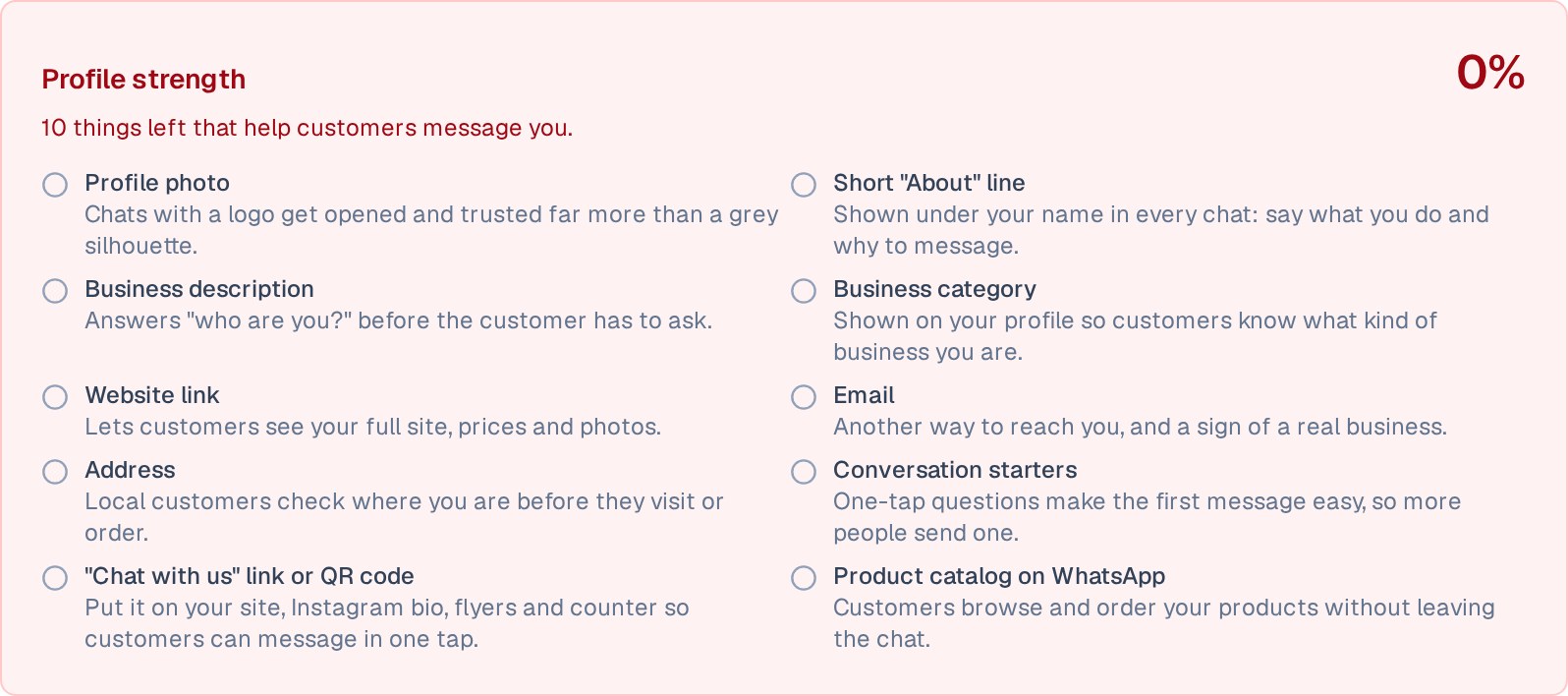
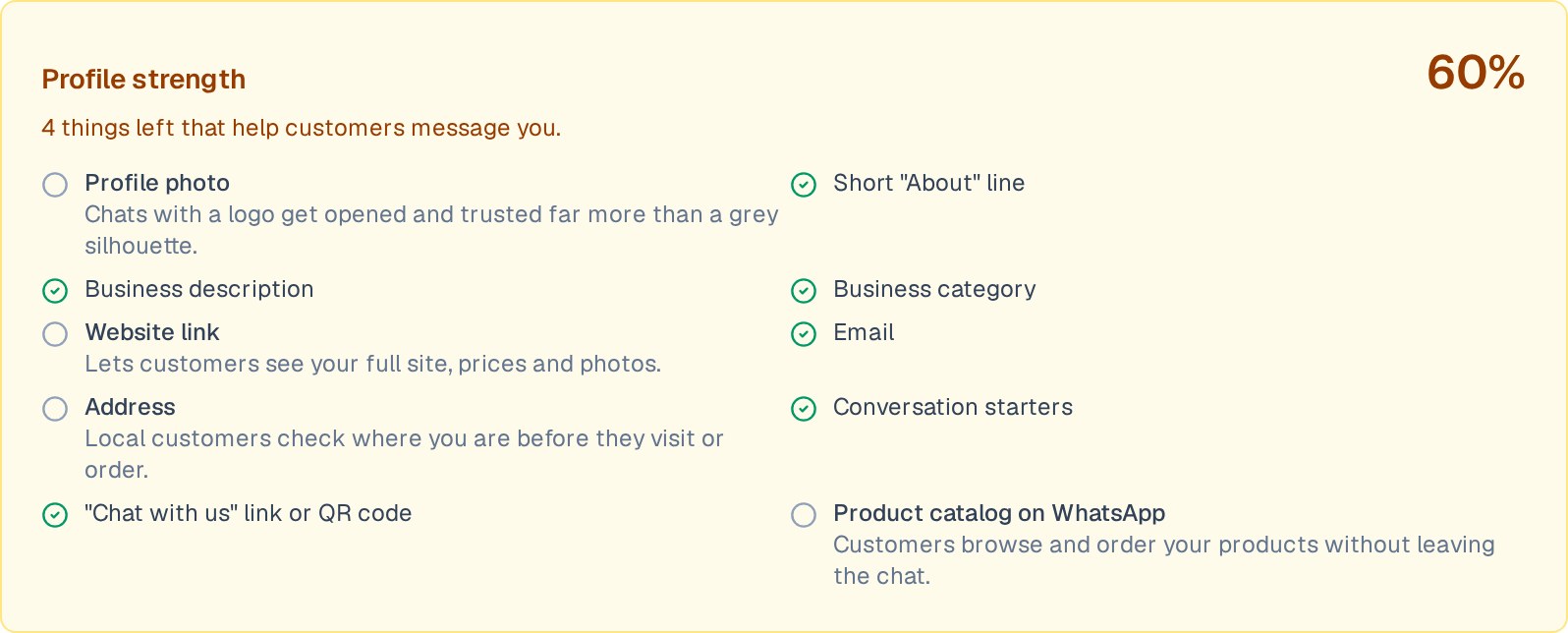
Open the Profile & growth tab. The Profile strength score shows what customers see when they tap your name, and what’s missing. Bella Napoli started at zero:
Click Write it for me from my website. Mondovo writes a short About line and a description, and picks your business category. Your email, address and website are copied from your site exactly as they are; nothing is made up. Check the wording, change anything you like, and save.
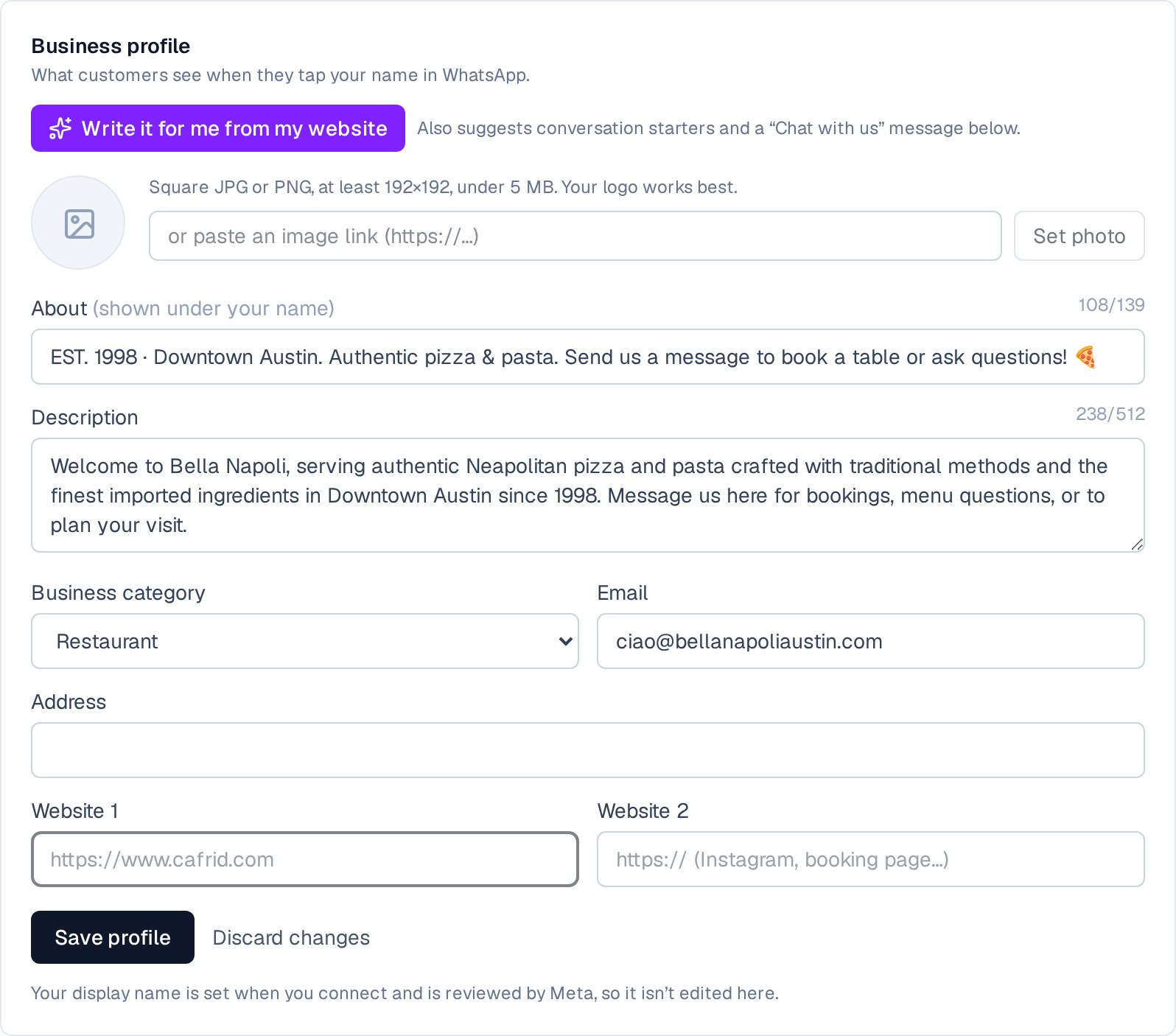
Add your logo as the profile photo (Use my website logo, or paste a link to a square image). Chats with a real logo get opened and trusted far more than a grey silhouette.
Step 4: Conversation starters
When someone opens a new chat with you, WhatsApp can show up to four questions they can tap. That removes the hardest part, writing the first message. The same “Write it for me” click suggests starters for your business:
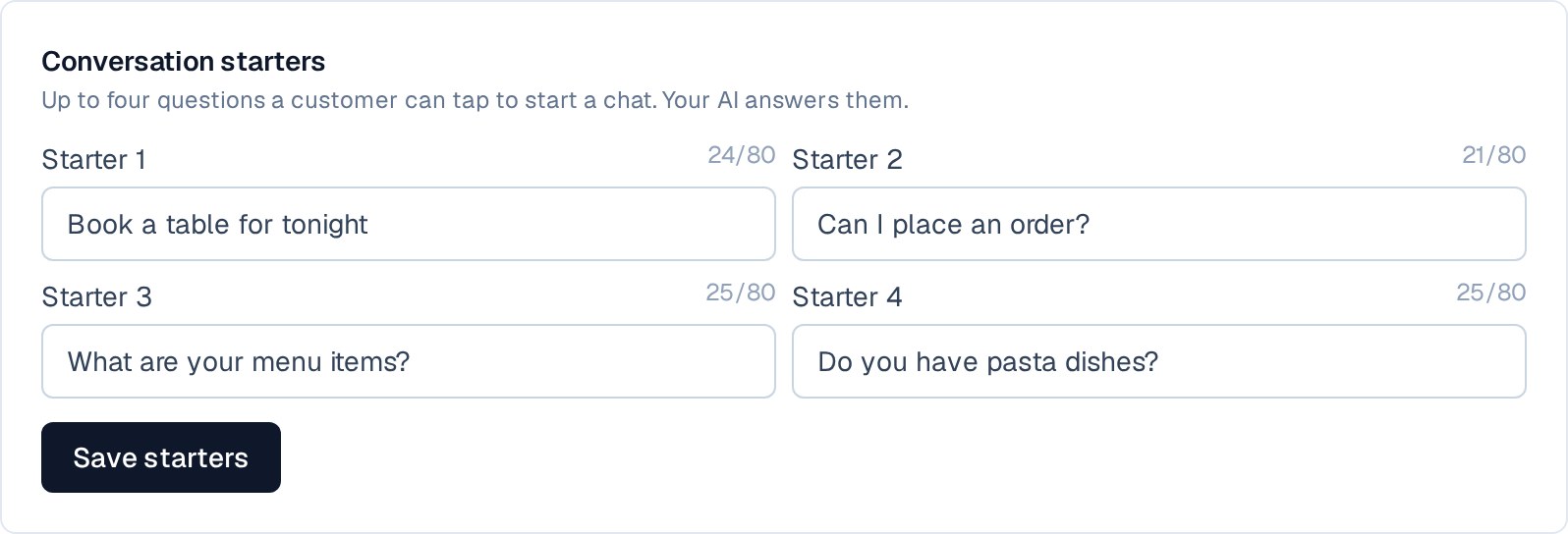
Your AI answers whichever one they tap, using your website’s menu, hours and booking page.
Step 5: “Chat with us” links and QR codes
Write the message a customer will send and click Create link + QR. You get a short link and a QR code that open WhatsApp with that message ready to send:
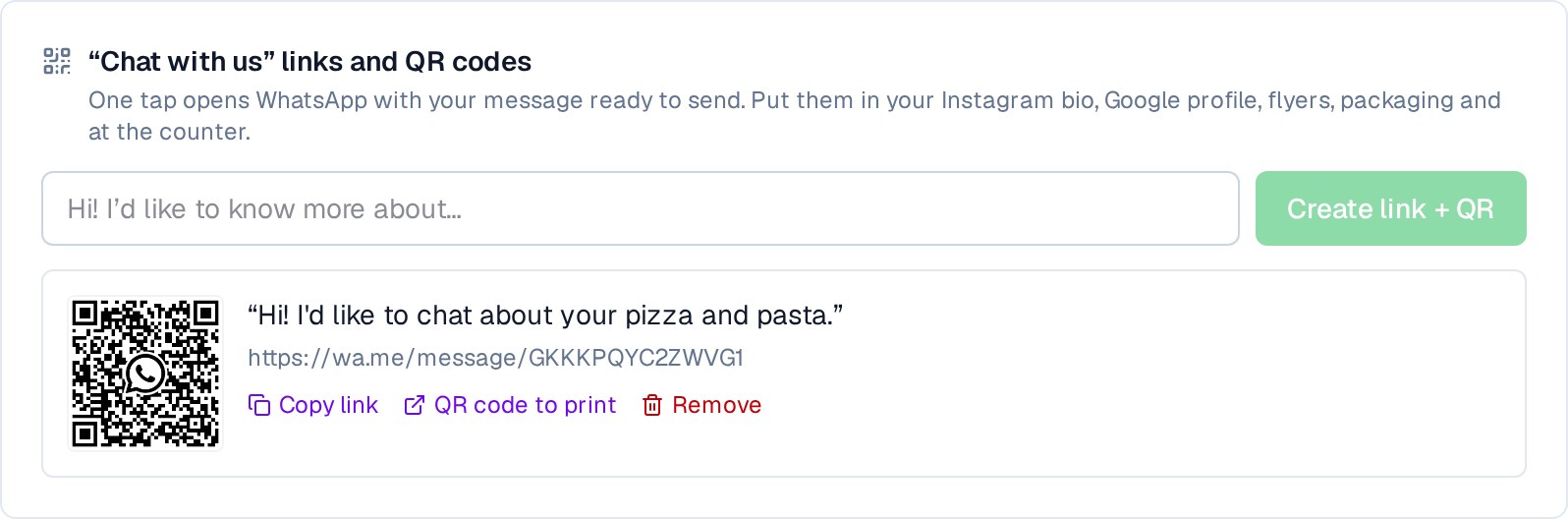
Put the link in your Instagram bio, Google profile, emails and ads. Print the QR code on menus, flyers, bills, delivery bags and the counter. With the profile, starters and a link done, Bella Napoli went from 0% to 60%:
Step 6: Your AI assistant
There’s no bot to build and no keyword menu to maintain. The assistant already knows your business from your website: menu and prices, hours, location, services, booking and payment pages. It answers in the customer’s own words and language, sends voice-note transcripts and photos to your Inbox, and points people to the right page to book or buy.
Before customers see it, try it yourself. Test WhatsApp assistant opens a safe test chat: nothing is sent to a real person.
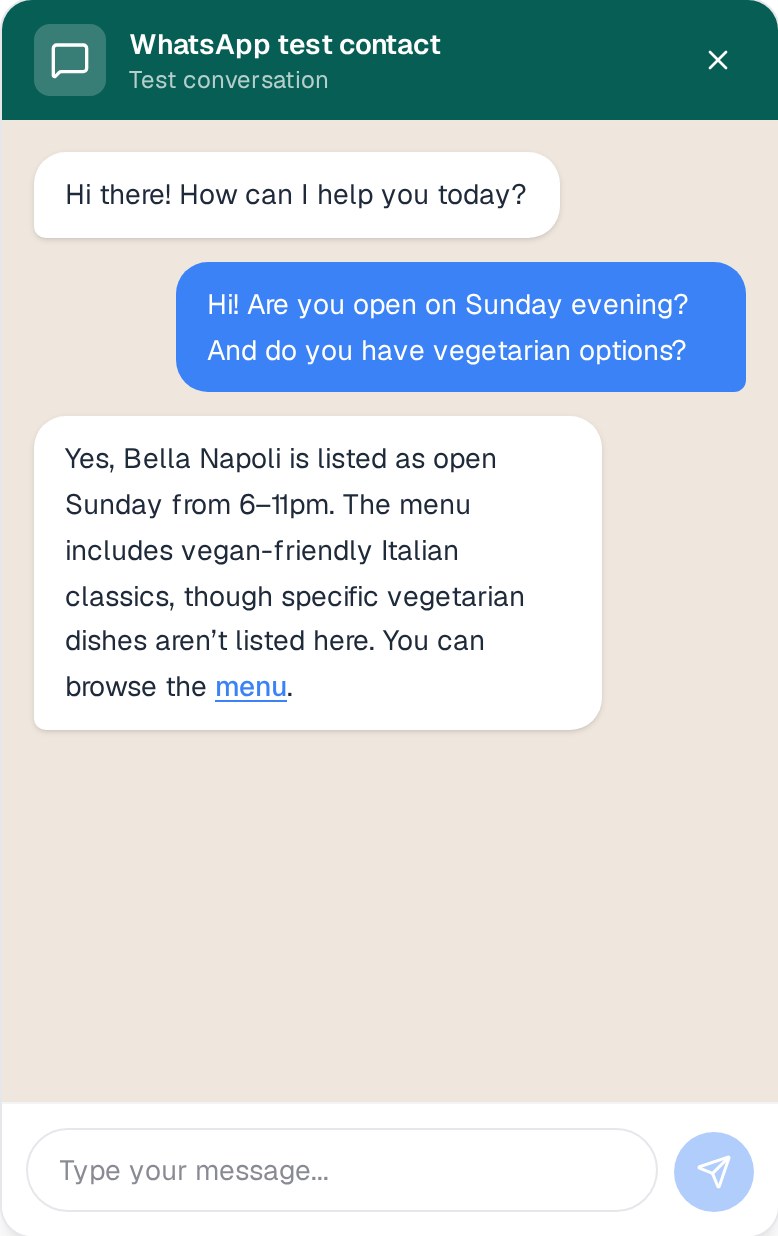
If an answer isn’t quite right, the same screen lets you suggest a change and see the assistant’s new reply before you keep it. Anything you add to your site’s knowledge, or to the website itself, is used from the next message.
Step 7: You and the AI in the same chats
Every WhatsApp chat lands in your Inbox, next to your website chats, forms and calls. In any conversation you can let the AI carry on, reply once yourself, ask for an AI draft, or take over the whole conversation:

If you kept the WhatsApp Business app on your phone, you can simply reply from there. Your phone reply shows up in the Inbox, and the AI stops replying in that chat so the customer never gets two answers:
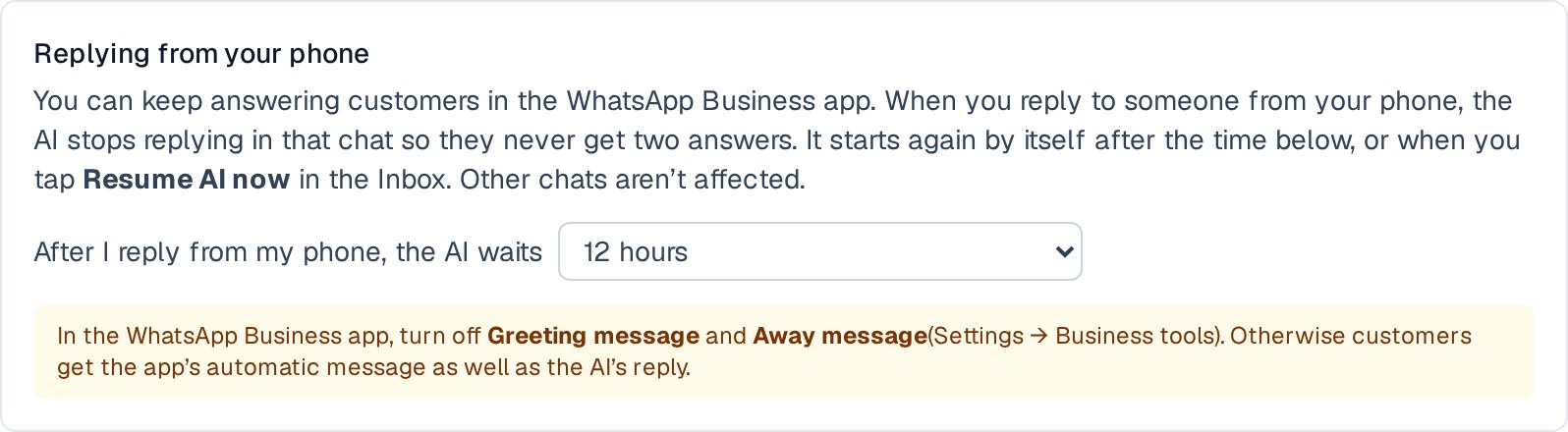
The AI starts again by itself after 12 hours, or whatever time you choose, from “never pause” up to 7 days. Tap Resume AI now to bring it back sooner. Other chats aren’t affected.
One tip: in the WhatsApp Business app, turn off Greeting message and Away message (Settings → Business tools). Otherwise customers get the app’s automatic message as well as the AI’s reply.
Step 8: Your products in the chat
If your site has products with prices (a menu, a shop, packages), customers can browse them in WhatsApp and send you an order from the chat. The catalog fills itself from your website every day, so you only ever edit products in one place.
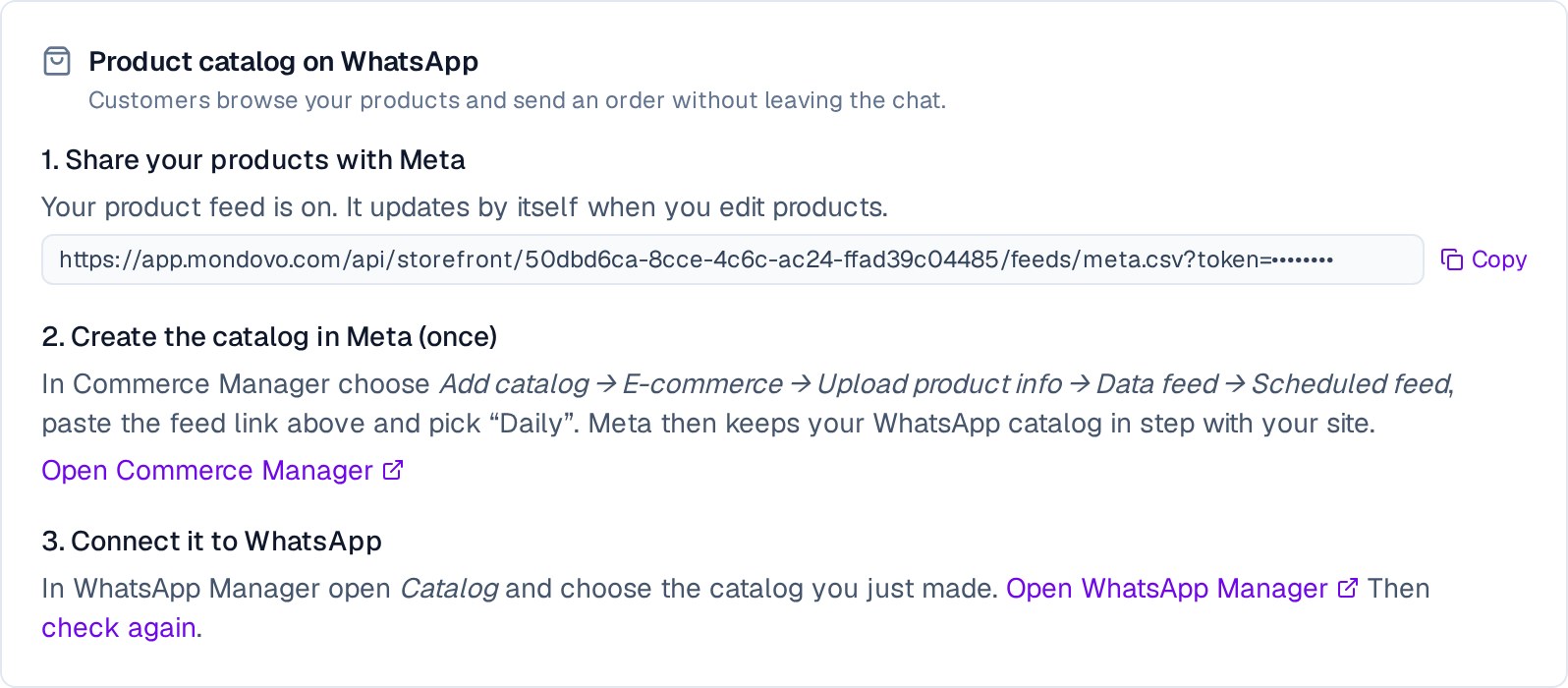
- Click Turn on my product feed and copy the link.
- In Meta Commerce Manager, add a catalog from a scheduled data feed, paste the link and choose Daily. This is a one-off step.
- In WhatsApp Manager, connect that catalog to your number. Then switch on the shop button and the cart in Mondovo.
When a customer sends their cart, it arrives in your Inbox as a clear list of items and the total, ready for you or the AI to confirm.
Step 9: Reminders, updates and offers
WhatsApp only lets businesses message someone first, or more than 24 hours after their last message, with a template Meta has approved. In Message templates, describe what you want (“a reminder two hours before a table booking”), let Mondovo draft it, and submit it to Meta. Approval usually takes minutes:
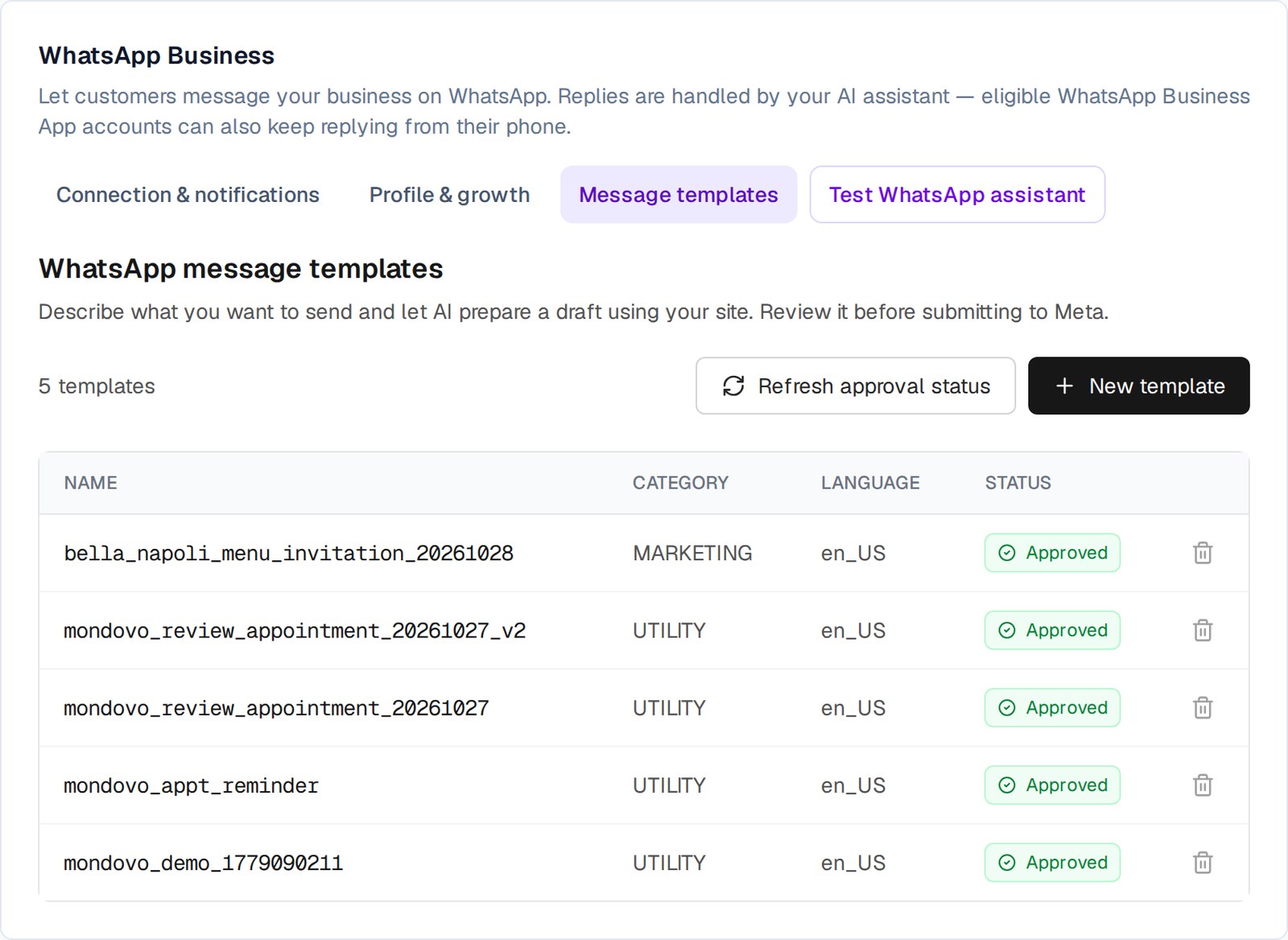
Approved templates then go out automatically from your journeys (after a booking, an order or a form) or by hand from the Inbox. Anyone who replies “stop” isn’t messaged again.
Moving from Wati, Interakt, AiSensy or another tool?
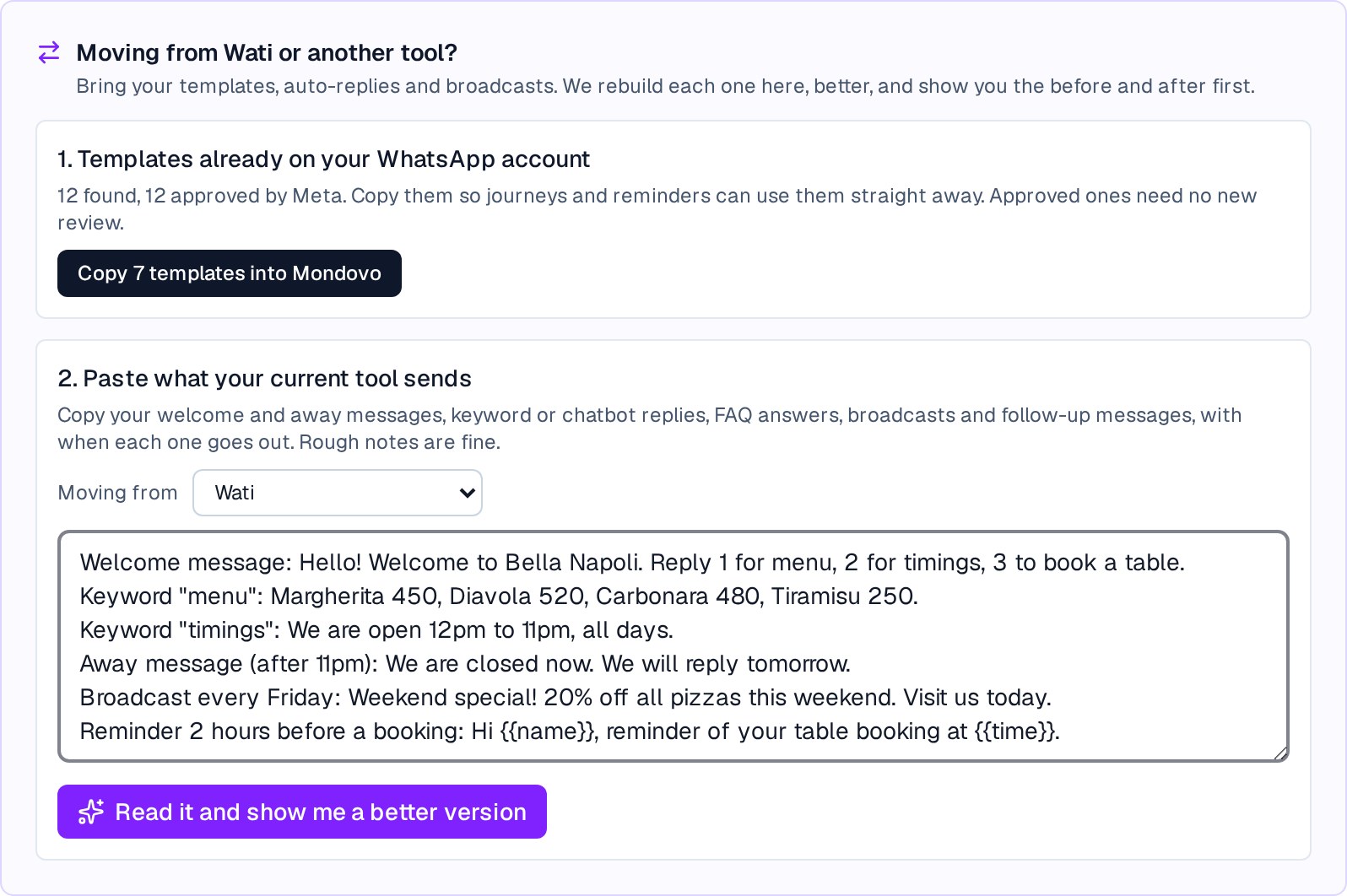
You don’t have to start again, and you can even keep the old tool running on the same number while you switch. In Profile & growth, the Moving from Wati or another tool? box does three things.
1. Copy your approved templates. Templates already approved on your WhatsApp account are copied in one click and work straight away, with no new review.
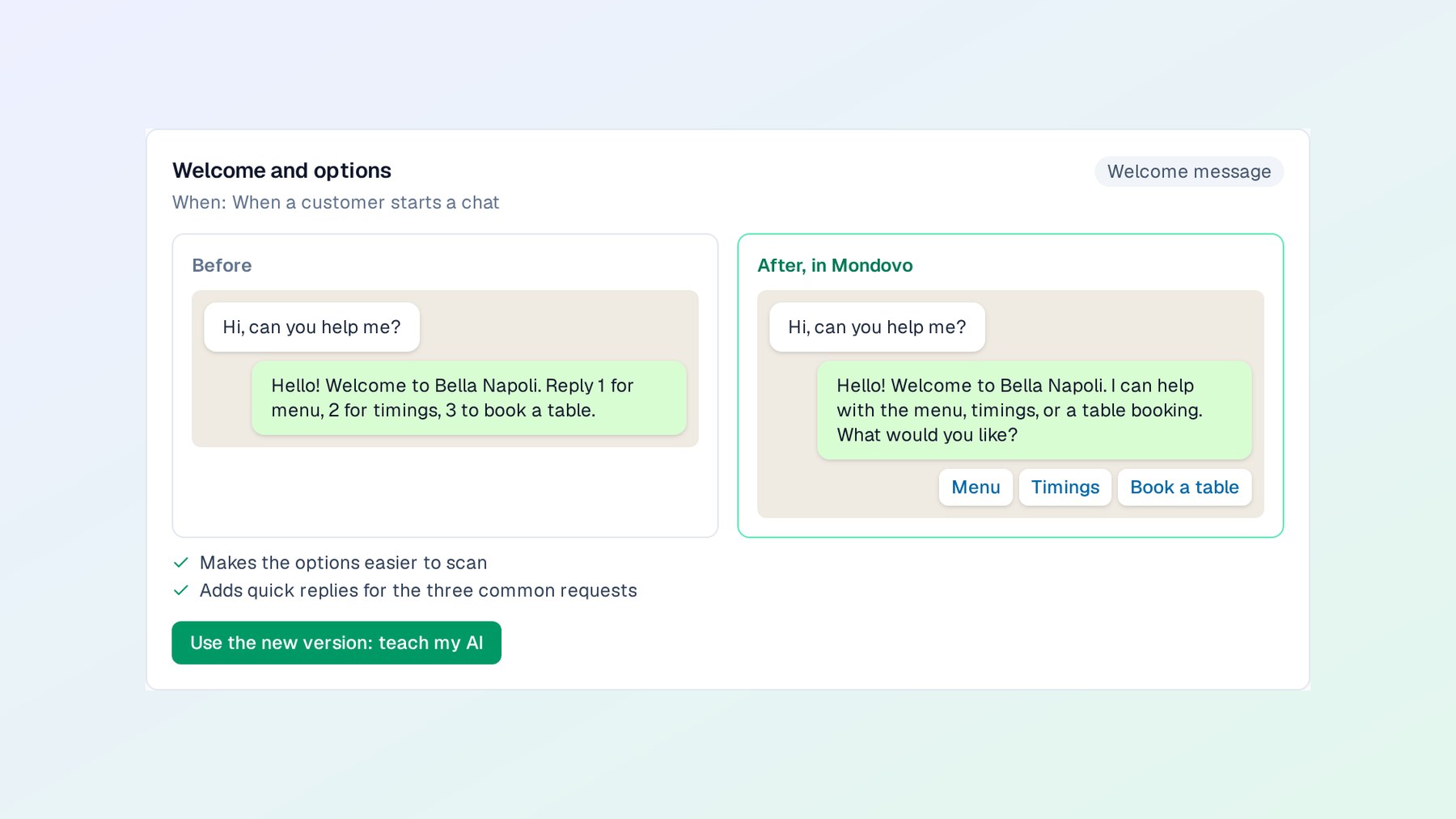
2. Paste what your old tool sends. Welcome and away messages, keyword replies, broadcasts, reminders, with roughly when each goes out. Bella Napoli’s old setup looked like this:
3. See a better version of each, side by side. For every automation, Mondovo shows what a customer sends, what the old setup replied, and what happens now, with the reasons it works better:
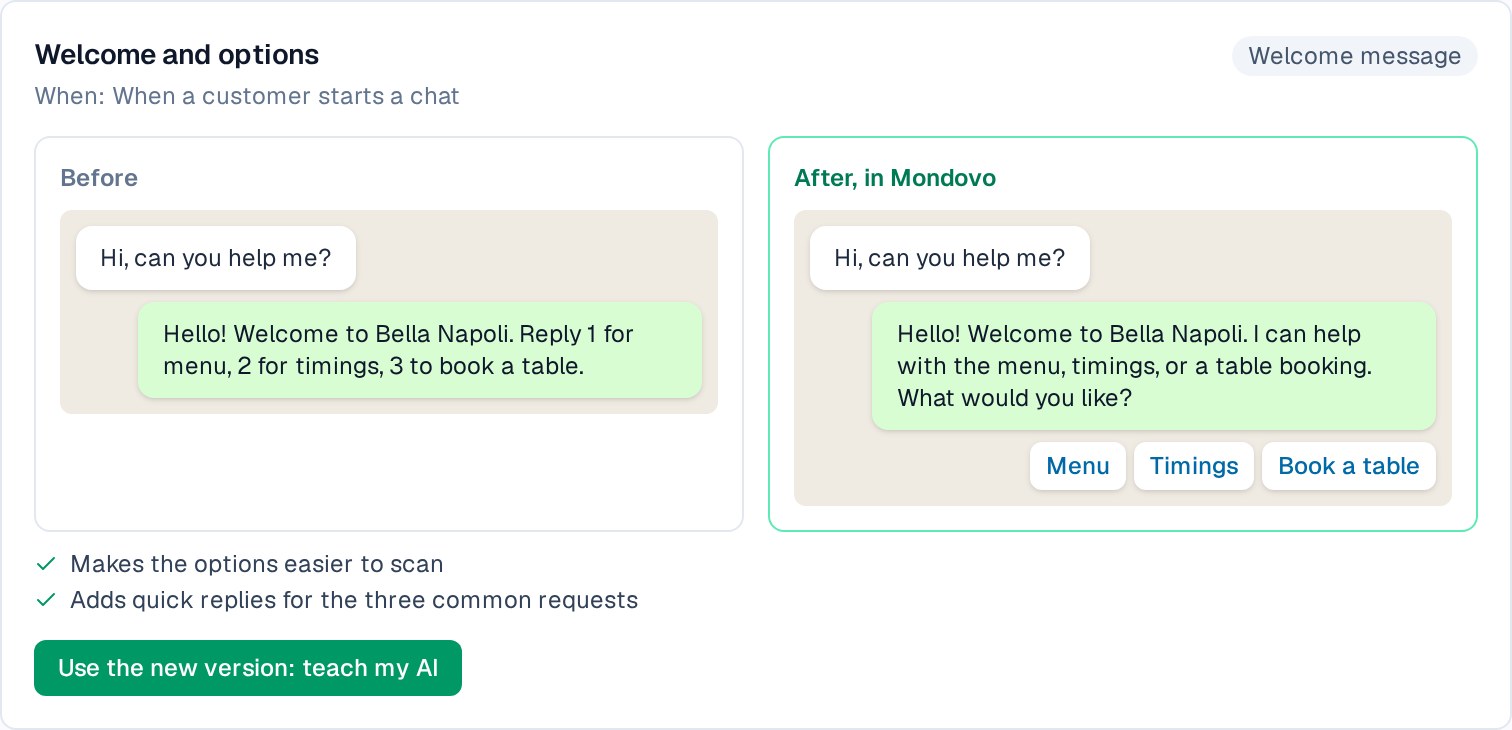
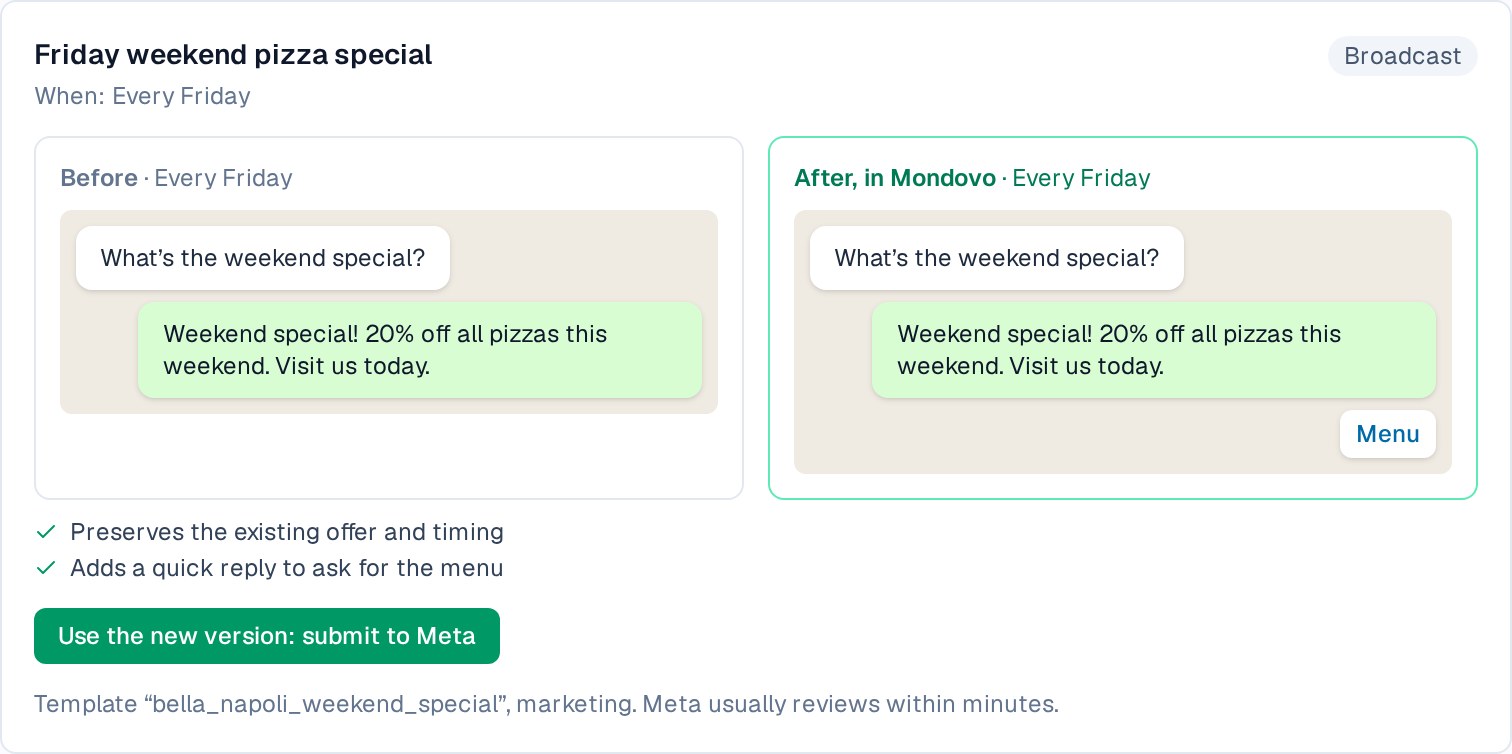
Your prices, hours and offers are kept exactly as you wrote them. One click recreates each one. Auto-replies and FAQs become knowledge for your AI, which answers whatever the customer actually asks instead of making them reply “1”. Broadcasts and reminders become templates submitted to Meta. Your chat history stays in the old tool; export your contacts there and import them into Mondovo.
Your checklist
- Connect your number (pick the right kind first).
- Set up payment in Meta: UPI funds in India, or a card.
- Write your profile from your website and add your logo.
- Add four conversation starters.
- Create a “Chat with us” link and print the QR code.
- Test the assistant, then let it answer.
- If you sell products, connect your catalog.
- Create your reminder and update templates.
- Moving from another tool? Copy, paste, compare, recreate.
Questions along the way? The WhatsApp help guides cover each step, including common questions and moving from another tool.