Blog
How to Build a Website with ChatGPT and Mondovo
Connect Mondovo to ChatGPT, approve a factual content plan, compare designs, make controlled edits and publish a maintained website without confusing raw code with a live site.
ChatGPT can help you plan a website, write its pages and work with a connected service. The important distinction is what happens after the answer: a chat response containing HTML is raw code, while a connected hosted builder can validate, host and publish a maintained site. This guide shows how to use ChatGPT with Mondovo for the latter, while keeping approval of the brief, design and publication in your hands.
Mondovo publishes this guide. The connector can be available on any Mondovo plan, including Free, but the actions ChatGPT exposes depend on your ChatGPT plan, workspace policy, connection permissions and the connector tools approved for that workspace. Steps and source pages were checked on 21 October 2026.
What you need before you start
- a Mondovo account and the business facts you are willing to use: name, location, services, audience, contact details and the one action the site should drive;
- access to ChatGPT on the web, with the ability to use the relevant app or custom connector in your account or workspace; and
- a short list of things that still need a human decision, such as the correct phone number, service prices, booking rules, domain and legal copy.
Free Mondovo can publish one site on a shared Mondovo address and includes 50 refinements per month. Its 50 Creative Studio credits are granted once in the first month, not every month. US Pro is $20/month for the first live site and each additional live site is another $20/month. Domain registration is separate. Billing country controls the currency, term, tax and plan limits, so use the current pricing page for the account that will pay. The Agency add-on is separate: it is the route for API access and white-label agency delivery, not a requirement for ordinary assistant use.
Connect Mondovo in ChatGPT
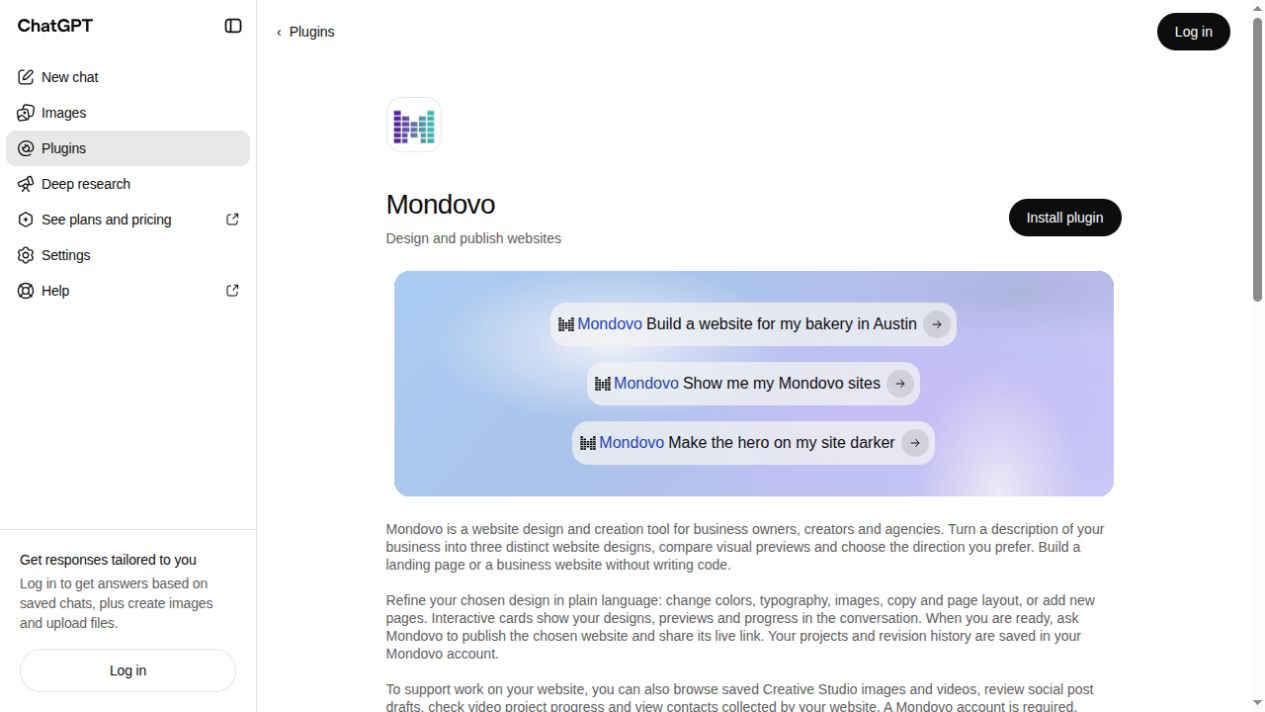
Mondovo’s public ChatGPT listing, captured on 21 October 2026. This shows installation access, not a completed website build.
Start with Mondovo’s assistant connector guide or open the verified public Mondovo listing in ChatGPT. Choose Install plugin, authorize the Mondovo account, select the intended workspaces and review the requested access. This ordinary listing route does not require developer mode. The current OpenAI connected-app guidance labels this area under Settings → Plugins, while some accounts show Settings → Connectors or an Apps directory. Mondovo’s own connector page says contacts, Creative Studio and the posting calendar can be separate permissions; grant only what your first task needs.
If Mondovo is not available in your directory, or your workspace specifically supports custom MCP servers, use the advanced route. OpenAI’s current developer instructions say to open Plugins, select the plus button, choose Add custom MCP server, enter a name and the public HTTPS endpoint, configure authentication, acknowledge the risk warning and create the plugin. The verified ChatGPT endpoint in Mondovo’s repository is https://app.mondovo.com/api/mcp/chatgpt. Follow the official OpenAI instructions for adding a custom MCP server because the menu and workspace controls can change.
OpenAI’s developer documentation says ChatGPT supports read and write tools from a trusted custom MCP server, subject to web access, workspace permissions and security restrictions. A Mondovo plan alone does not guarantee that ChatGPT can create, edit or publish in your current workspace. If the app is unavailable, a tool is hidden, or an action is read-only, use the Mondovo app or ask the workspace administrator which app and action controls are allowed.
Which surface handles which job?
| Job | Use | Keep under your control |
|---|---|---|
| Plan and write | ChatGPT with Mondovo connected | Business facts, assumptions and the approval of the content plan |
| Design and edit | Mondovo tools exposed to the current ChatGPT workspace | Which variation to choose and which exact page change to apply |
| Billing and account settings | Mondovo app | Regional price, tax, domain purchase, credit spend and account changes |
| Publish | ChatGPT connector when the action is available, or the Mondovo app | A final review and an explicit publish request |
Give ChatGPT a brief it can check
Do not start with “make me a nice website.” Start with facts and an approval boundary. Try:
Use Mondovo to plan a website for North Loop Bicycle Repair in Minneapolis. We repair commuter and cargo bikes, serve riders within 10 miles, and want appointment requests. Use only these facts: [paste facts]. First show me the page plan, audience assumptions, service names and missing information. Do not invent prices, reviews, addresses or opening hours. Wait for my approval before creating designs.
The connector’s build workflow gathers the missing brief, writes a page-by-page content plan and then can generate three complete designs from that approved plan. Review the business name, service list, locations, contact details and call-to-action before design generation. An AI can make a confident-looking false address or testimonial if you do not supply the fact, and a polished preview does not make the claim true.
Compare, refine and publish safely
- Approve the plan. Ask ChatGPT to list assumptions and open questions. Correct the plan before asking for designs.
- Compare the directions. Ask for three design variations and inspect the previews. Choose one by its layout, readability and fit for the business, not by an invented “conversion score.”
- Make a bounded edit. Use a concrete request such as
On the chosen design, change the hero button to “Request an appointment,” keep the existing services and do not add a phone number.Mondovo records edits in version history so you can restore a version. - Test the visitor path. Check navigation, the contact form, booking details, mobile layout and every factual claim. Ask ChatGPT to show what it changed when that helps you review.
- Ask to publish only after approval. Use
The design and contact details are approved. Publish this site to the confirmed Mondovo address. Do not connect a custom domain yet.Treat a publish action as a separate decision. If you want a custom domain, add the registrar’s DNS record and domain cost separately.
Mondovo’s public connector guide describes publishing as an explicit request and says campaign sending and some account settings remain in the Mondovo app. Posts may be drafted into the calendar, and follow-up sequences can be saved switched off; do not assume that drafting means sending. Creative Studio outputs show a credit cost before creation. Builder voice uses its own allowance rather than the first-month Free Creative Studio grant.
Useful prompts after launch
List the pages and their SEO titles for my site. Suggest improvements, but do not change anything until I approve the exact list.Read the latest form submissions and summarize them without contacting anyone. Ask before tagging or changing a contact.Draft four social posts about the new service page. Put them in the calendar as drafts only; do not queue or publish them.Compare the current homepage with the approved brief. List factual mismatches and propose copy patches without redesigning the page.
These prompts keep research, drafts and writes distinct. The connected assistant can see only the workspaces and permissions you approved, and the exact tool set can change when a workspace administrator updates an app. Use explicit confirmation for publication, sending, billing or credit-spending actions; ordinary bounded copy edits can proceed from a clear request and should be reviewed in the returned diff or preview.
Common errors and what they mean
“Mondovo is unavailable”
Check that you are in the intended ChatGPT workspace, that the app is enabled for your plan and region, and that the Mondovo account connection completed. In a managed workspace, an administrator may need to publish or allow the app. Reconnect the intended Mondovo account if ChatGPT selected the wrong provider account.
“I can read sites but cannot edit or publish”
That is often an assistant or workspace permission boundary, not a Mondovo billing failure. OpenAI’s current custom-MCP documentation distinguishes read/fetch access from write and modify actions. Ask the administrator to review the connector’s allowed actions, or complete the edit and publication in Mondovo.
“The answer contains code but no live site”
Ask whether ChatGPT used a connected Mondovo tool or merely wrote a code sample. Raw HTML or React is source code; it still needs a hosting or deployment path, a domain if desired, and someone to maintain forms, dependencies or other runtime pieces where applicable. If you want Mondovo to host it, ask ChatGPT to use the connector, show the plan and wait for your approval before creating and publishing the site.
Related reading
Read the Mondovo platform overview, pricing and plan limits, the affordable-builder comparison, the Claude connector tutorial, the wider AI-builder guide and the website-cost breakdown.
Publisher note: Mondovo publishes this guide and provides the connector described here. OpenAI and Mondovo interfaces, plan availability, taxes and permissions can change. Last checked 21 October 2026; verify the current app controls and billing screen before relying on a plan or workflow.