Blog
How to Build a Website with Claude and Mondovo
Use Claude’s remote connector to plan a website in Mondovo, compare three designs, request precise edits and publish only after checking the facts, permissions and billing.
Claude can be a useful website collaborator when it has a controlled connection to a hosted builder. It can gather a brief, prepare a page plan, compare designs and make an approved edit in a conversation. A text answer containing HTML is different: that is raw code, not a hosted, maintained website with a domain, forms and a publish history.
This guide uses the Mondovo remote MCP connector for Claude. Mondovo publishes it, and the connector may be used with any Mondovo plan, including Free. Claude’s own plan, connector availability, workspace policy and tool permissions determine whether you can read, create, edit or publish. Steps and source pages were checked on 21 October 2026.
Before connecting
Prepare a small, factual brief:
- business name, location and service area;
- the services or products you actually offer;
- the audience and the one action the site should drive;
- verified contact details, opening hours, prices and booking rules; and
- any existing website address or reference site you want Claude to study.
Do not ask Claude to guess an address, review, qualification or service price. Ask it to mark missing information instead. Mondovo Free can publish one site on a shared Mondovo address and includes 50 refinements per month. It grants 50 Creative Studio credits once in the first month only. US Pro is $20/month for the first live site, with additional live sites at $20/month each. Domain registration is separate. Regional billing country controls currency, term, tax and plan limits, so check the pricing page for the account paying. The Agency add-on separately unlocks API access and white-label agency delivery; a Claude connector is not the same thing as API access.
Connect Mondovo to Claude
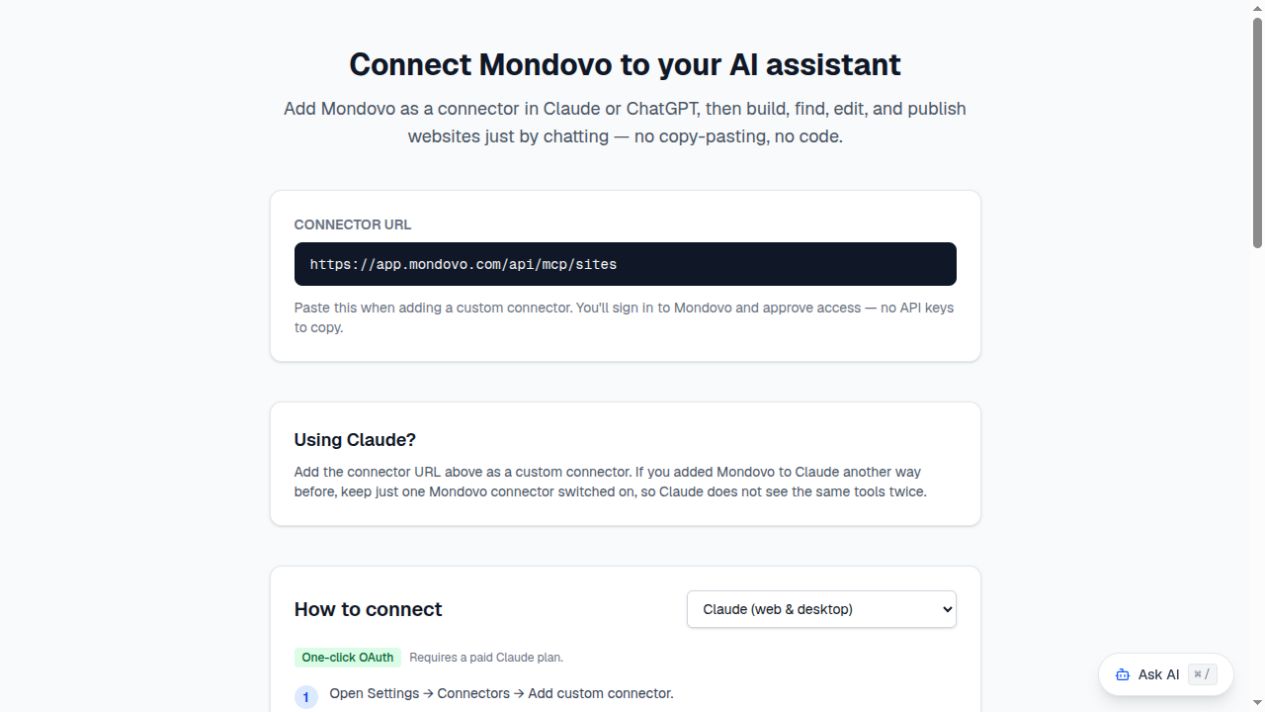
The actual Mondovo connection guide with Claude selected, captured on 21 October 2026. Assistant interfaces and plan requirements can change.
Use Mondovo’s connection setup page to start. For Claude on the web, Anthropic’s current custom-connector instructions are Customize → Connectors → Add → Custom → Web. Enter a name, add the remote MCP URL, continue through the detected authentication settings, choose the sign-in behavior and complete the connection. The general custom-connector URL shown by Mondovo is https://app.mondovo.com/api/mcp/sites. Sign in to Mondovo, select the intended workspace and review permissions. Older Claude interfaces can label this Settings → Connectors → Add custom connector.
Read Anthropic’s official connector setup instructions as you connect. Anthropic says remote custom connectors are available for Free, Pro, Max, Team and Enterprise users, with Free users limited to one custom connector. The server must be reachable over the public internet because the connection comes from Anthropic’s cloud. A Team or Enterprise administrator can also restrict the connector or individual tools.
Review Mondovo’s sign-in permissions. Site access, source access, contacts, Creative Studio and the content calendar can be distinct. Connect one Mondovo endpoint only; if a plugin adds the same remote connector, keep one path active so Claude does not see duplicate tools. Disconnect it later in Claude’s connector settings or Mondovo’s connected-app settings.
Connection, plan and action boundaries
| Question | Where to check | Why it matters |
|---|---|---|
| Is Mondovo connected? | Claude’s Customize → Connectors page and Mondovo’s connected-app settings | A connector can be installed but disconnected or disabled for the current chat. |
| Can Claude edit or publish? | Claude’s tool access and workspace policy, then Mondovo’s approved scopes | Read access does not imply write access. |
| What will I pay? | Mondovo Billing and the regional pricing page | Assistant access follows the Mondovo plan, but the billing country controls price, term, tax and limits. |
| Does an email go out? | Mondovo app campaign controls | Drafting a campaign in Claude is not the same as sending it. |
Start with an approval-first prompt
Claude’s best first task is to turn facts into an explicit plan. Try:
Use Mondovo to plan a website for Cedar & Stone Landscaping in Portland, Oregon. We provide planting design, maintenance and small hardscape projects for homeowners within 20 miles. The main action is “Request a site visit.” Use only those facts plus this contact information: [paste verified details]. First show the page list, service names, assumptions and missing facts. Do not create designs or invent reviews until I approve the plan.
The Mondovo build skill asks for a business brief, fills only what can be inferred, asks the remaining questions in a short conversation and then creates three designs from an approved content plan. Let Claude show its assumptions. “Premium” or “friendly” is a style direction, not permission to invent a five-star review or a guarantee of results.
Compare the designs, then edit the right thing
- Approve content first. Correct the page architecture, services, locations and call to action before spending time on design.
- Review all three directions. Ask Claude to describe what changes between them and open the preview for readability on desktop and mobile.
- Use a precise edit request. Say which page, element and outcome you want. For example:
On Home, keep the existing copy but change the hero background to a lighter stone colour and make “Request a site visit” the only primary button. Apply that bounded edit and show me the exact change. - Check version history. Mondovo records site changes and supports restoring a prior version. A restoration concerns the website version; it does not reverse an email, credit use, billing action or other business action.
- Publish only after a final review. Use
The approved design is ready. Publish it to the confirmed Mondovo address and tell me the returned URL. Do not connect a custom domain or send any campaign.
Publishing is a deliberate request. Hosting and SSL are handled by the hosted platform, but your domain registration and registrar DNS work remain separate. Campaign emails are sent from the Mondovo app, not silently from Claude. Social posts can be drafts on the calendar; queuing is a separate action. Creative Studio work shows its credit cost before generation. Do not confuse those credits with builder voice minutes.
Prompts for real maintenance work
List every factual statement on the services page that is not supported by my brief. Do not edit yet.Patch the contact page’s button text to “Ask about availability.” Preserve the form fields and show the exact before-and-after copy.Read this week’s enquiries and summarize the themes. Do not reply, tag or export anyone until I approve a specific action.Draft five calendar posts from the approved maintenance page. Keep them as drafts and flag any claim that needs a source.Show me the current page titles, descriptions and canonical URLs. Suggest changes without applying them.
Use explicit confirmation for publishing, sending, billing or credit-spending actions. For ordinary bounded edits, state the requested change and review the returned result. Claude’s permission controls can allow, require approval or block a connector; a Team or Enterprise administrator can impose a stricter ceiling.
Free versus Pro in this workflow
Free is enough to test the workflow, refine within its 50-refinement monthly allowance and publish one site on a shared Mondovo address. Its 50 Creative Studio credits arrive once in the first month and do not renew. Pro is the route to a custom domain: in the US, the first live site is covered by the $20/month Pro charge and each additional live site adds $20/month. The exact currency, term, taxes and limits depend on the billing country displayed in Mondovo. Creative output and any separate app services should be reviewed in the billing screen before use.
Claude access can still differ from Mondovo access. An assistant plan or a managed workspace may permit reading but block write tools. If Claude says it cannot edit or publish, use the Mondovo app or ask the workspace owner to review connector permissions. API calls from your own application are a separate Agency add-on capability; they are not included merely because a Claude connector is connected.
When Claude returns code instead
If you ask Claude to “write a React site,” it may produce a useful source file, but the file is not automatically hosted. You still need a deployment target and, where applicable, environment variables, a domain, SSL, form handling, dependency updates, accessibility checks and a recovery plan. Use the Mondovo connector when your goal is a maintained site with version history, review and publication. Use raw code when you deliberately own that engineering and hosting workflow.
Fixing common connection problems
Claude cannot find the connector
Open Customize → Connectors and confirm the connector is connected and enabled for the current conversation. Check the remote URL, the selected Mondovo workspace and the Claude account that is signed in. Free users can have only one custom connector, and Team or Enterprise administrators can hide connectors or tools.
Authentication succeeds, then a tool fails
Reconnect and review the provider permissions. Confirm that your Mondovo role can work on the selected workspace and site. A connector can be present while a particular action is unavailable because the workspace permission, assistant control or Mondovo scope does not include it. Read-only access is not evidence that editing or publishing is enabled.
The website looks right but contains a wrong fact
Stop before publishing. Ask Claude to compare the copy with your approved brief and list every unsupported claim. Replace the source fact, then ask for a targeted edit. Version history helps recover a bad change, but it cannot make an invented fact safe to publish.
Related reading
Continue with the platform overview, pricing and limits, the connector documentation, the ChatGPT plugin tutorial, the affordable-builder comparison, the AI website-builder guide and the website-cost guide.
Publisher note: Mondovo publishes this guide and provides the connector described here. Anthropic’s menus, Claude plan availability, workspace controls and Mondovo pricing can change. Last checked 21 October 2026; confirm the live connection and billing screens before you rely on a workflow.