Blog
How to connect your website to Zapier, Make or n8n (step by step)
Send every new lead, booking and payment from your website to Zapier, Make or n8n in about five minutes, and from there to your CRM, spreadsheet or email list. Step-by-step for each tool.
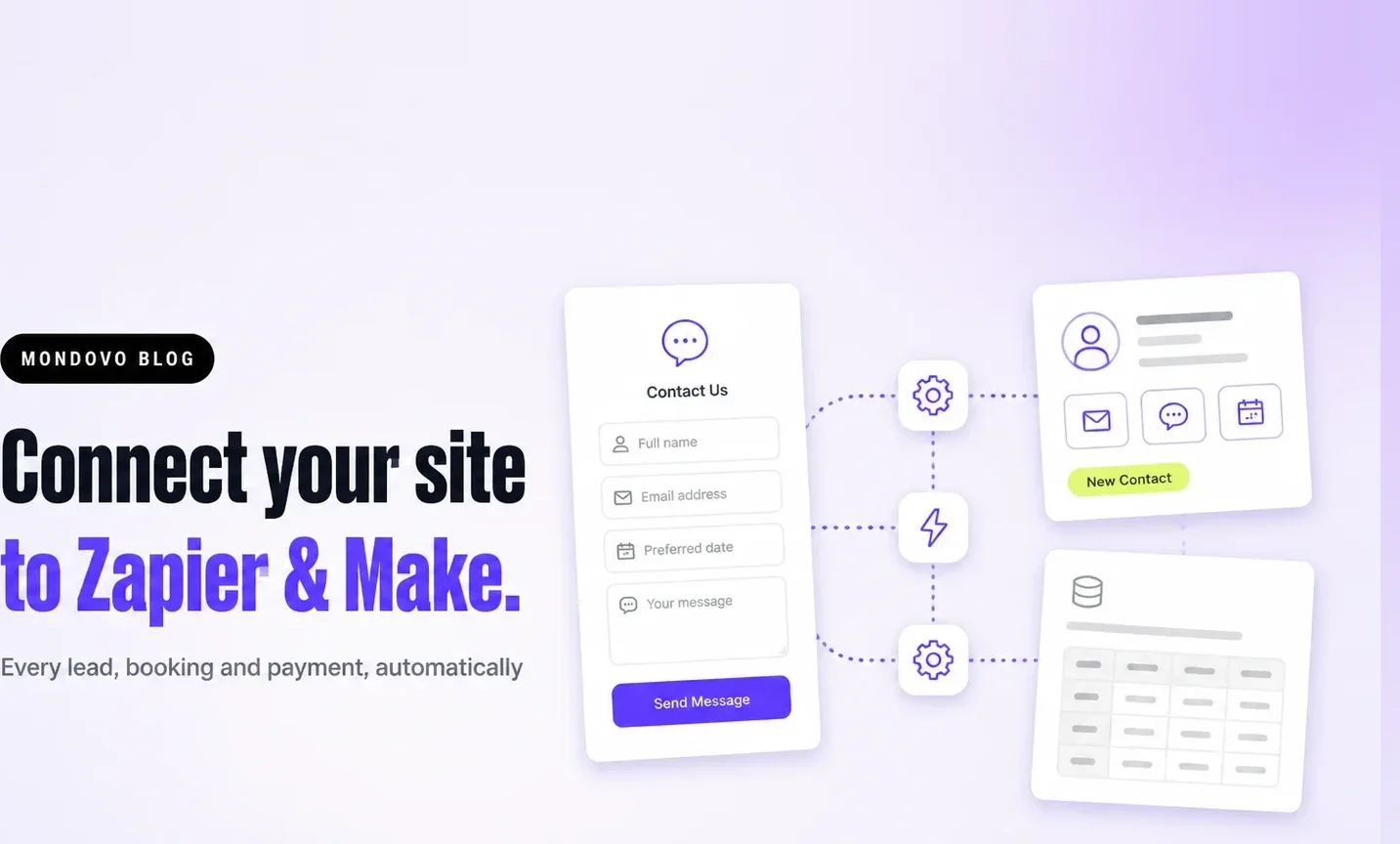
When someone fills in a form on your website, you probably want that lead somewhere else too: your CRM, a spreadsheet, your email list, a team chat. Zapier, Make and n8n move it there for you. All three start the same way: your website sends each new lead to a webhook address the tool gives you, and the tool takes it from there.
This guide shows the setup in each tool, step by step, using a Mondovo site. On other website builders the steps inside Zapier, Make and n8n are the same; only the place you paste the address changes. Steps were checked on 4 November 2026.
What you need
- A website with a form. On Mondovo, any plan works, including Free: site webhooks cost nothing.
- An account with the automation tool. Zapier's webhook trigger needs a paid Zapier plan (its Free plan does not include webhook connections). Make's Free plan includes 1,000 credits a month. n8n is free if you host it yourself; n8n Cloud is paid.
- Five minutes, and one test entry on your own form.
Which events you can send
A Mondovo site can send these events. Tick only the ones a workflow needs:
- Form Submitted: every form entry, with what the person filled in and the contact it was filed under (name, email, phone).
- Contact Created: a form entry with an email address added or matched a contact.
- Contact Revisited: a known contact came back to your site.
- Payment Completed: a customer paid for an order (amount, currency, name, email).
- Booking Created, Confirmed, Rescheduled, Cancelled, Completed: your appointments, with the service, time and the person's details.
- Any Alert: every site alert in one feed, including leads from chat, WhatsApp, SMS and voicemail.
Connect Zapier
- In Zapier, click Create → Zaps. For the trigger, search for Webhooks by Zapier and choose the event Catch Hook.
- Continue to the Test step and copy the webhook URL Zapier shows (it starts with
https://hooks.zapier.com/). - In Mondovo, open your site, then Site settings → Settings → Webhooks. Click to add a webhook, paste the URL, give it a name such as "Zapier: new leads", tick Form Submitted and save.
- Click Test on the webhook in Mondovo, or fill in your own form once.
- Back in Zapier, click Test trigger. You will see the entry with fields such as Data Contact Email, Data Contact Name and Data Submission Data Message.
- Add your action, for example HubSpot → Create or Update Contact, map the fields, test it and publish the Zap.
A test from the Mondovo Test button is marked _test: true and uses sample details. Map your fields from it, then send one real entry to check the result.
Connect Make
- In Make, create a scenario. Add the Webhooks app as the first module and choose Custom webhook.
- Click Add, name the webhook, save, and copy the address Make shows.
- In Mondovo, paste it under Site settings → Settings → Webhooks, tick the events you want and save.
- Make is now listening for the data structure. Click Test on the webhook in Mondovo (or submit your form) and Make shows "Successfully determined".
- Add the next module, such as Google Sheets → Add a Row or your CRM, map the fields, and turn the scenario on.
Connect n8n
- In n8n, add a Webhook node as the trigger and set the HTTP method to POST.
- Copy the Test URL first. Paste it into Mondovo under Site settings → Settings → Webhooks, tick your events and save.
- In n8n, click Listen for test event, then click Test in Mondovo. The entry appears in the node's output.
- Build the rest of the workflow, then switch the Mondovo webhook to the Production URL and activate the workflow. The test URL only works while n8n is listening.
Pipedream, Pabbly Connect, Activepieces and similar tools work the same way: create a workflow whose trigger is an HTTP or webhook request, copy its address, and paste it into Mondovo.
Only one form, or the whole site?
The site webhook sends events for every form on the site. To send just one form, open Messages & customers → Forms, choose the form, and set its own Webhook address there. A form can also opt out of the site webhook, so a newsletter signup does not land in your sales CRM.
Check it is working
- Delivery log. Each webhook in Mondovo shows its recent deliveries and whether the tool accepted them. If a Zap stops getting leads, look there first.
- Retries. If the address does not answer, Mondovo tries again up to 3 times within a few seconds. It is not queued for later, so if your tool was down for longer, export the missed entries from Mondovo as CSV.
- Turned off workflows. A Zap or scenario that is off, or an n8n workflow that is not active, refuses deliveries. Turn it back on and click Test.
- Security. Add a secret to the webhook and each request carries an
X-Webhook-Signatureheader: an HMAC-SHA256 of the body, in hex. Tools such as n8n can check it before trusting the data.
You may not need an automation tool at all
Several common jobs are built into Mondovo, so they need no Zap and no extra subscription:
- Google Sheets: Site settings → Settings → Google Sheets keeps a spreadsheet in sync with your submissions.
- Slack, Microsoft Teams, Discord and Google Chat: lead, booking and payment alerts go straight to a channel. See Get alerts in Slack, Teams, Discord or Google Chat.
- Follow-up emails and texts: a journey can reply to a new lead, wait, and follow up. See Build a journey that follows up for you.
- Your contact list: every form entry with an email becomes a contact in Mondovo, with tags, a pipeline stage and its history.
For ideas on what to automate next, from CRMs to invoices, read 12 automations for your website's leads.
Frequently asked questions
Is there a Mondovo app in Zapier or Make?
Not yet. We are building Mondovo apps for Zapier and Make so you can pick Mondovo from a list and sign in, instead of copying an address. Until they are listed, the webhook steps above give you the same leads, bookings and payments, and take about five minutes.
Does sending leads to Zapier or Make cost anything on Mondovo?
No. Site webhooks are free on every Mondovo plan, including Free. The automation tool has its own pricing: Zapier needs a paid plan for webhooks, Make's Free plan includes 1,000 credits a month, and self-hosted n8n is free.
Can I send leads to HubSpot, Salesforce, Pipedrive or GoHighLevel?
Yes, through Zapier, Make or n8n. Mondovo sends the lead to the tool, and the tool's HubSpot, Salesforce, Pipedrive or GoHighLevel step creates or updates the record. Mondovo has no direct connector to those CRMs.
Why does my Zap show sample data instead of my real lead?
The Test button sends sample details marked _test: true, so you can map fields before a real lead arrives. Submit your own form once to see a real entry, and add a filter step if you want test entries ignored.
What happens if my automation tool is down?
Mondovo retries a failed delivery up to 3 times within a few seconds. It does not hold events for later, so check the webhook's delivery log and export any missed entries as CSV from your Mondovo inbox.